Feature support
Apps built for Canva run in various contexts, and it's essential to consider how your app functions across varied contexts such as the design type and surface. For example, consider the context of these design types and surfaces:
- Design types:
- Surfaces:
- The object panel.
- Selected image overlay.
- Preview or future contexts that impact API availability.
Make sure you're checking if a feature is available and supported, partially supported, or unavailable for your app's use case. It's an important part of developing your app's overall UI. There are steps you can take when feature availability changes to make sure your app's overall user experience is consistent, even across different contexts.
Check feature availability
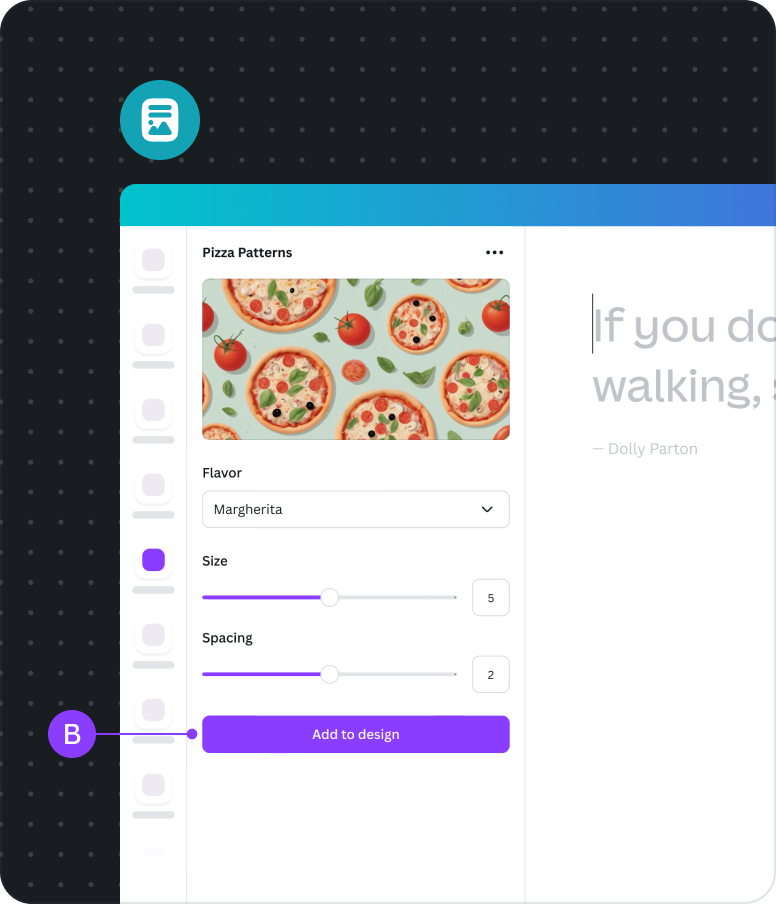
As an example of how to check feature availability, the following pattern generator app adds patterns as an image, or sets patterns as page backgrounds:
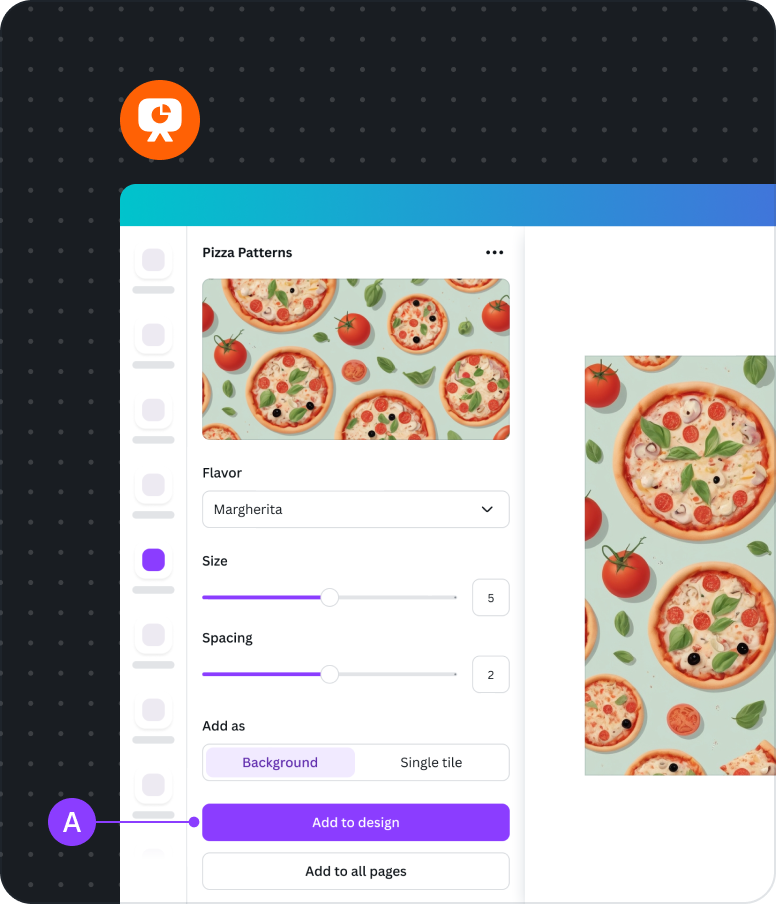
A When opened in a Presentation design type, all the features are available for users to try when uploading their backgrounds.
BThe API to set background isn't supported and is unavailable in a Docs design type. As a result, when a user opens the app in a Doc, the app partially supports setting the page background.
Apps with partial support in a given design type may have some features unavailable to the user. This doesn't necessarily mean they can't use an app in that given design. In these cases, it's better to gracefully restrict access to unsupported features based on the user's selected design type. Make sure that your feature availability, or unavailability, doesn't disrupt the overall user experience.
Identify level of feature support
When designing your app, make sure you check if a feature is available and supported, partially supported, or unavailable, and assess the impact. You can check for supported APIs by referring to the feature support matrix, or checking in developer mode when you preview your app.
There are 3 levels of feature support to look for when assessing feature support impact on your app:
Fully supported
- Your app only uses supported APIs.
- All the features work across all design types and surfaces.
- Adaptation isn't a requirement.
Partially supported
- Your app uses APIs unsupported in some design types or surfaces.
- Users are not prevented from carrying out the app's primary functionality.
- Some adaptation is a requirement:
- Implement the design pattern to handle unsupported features.
- Contact us(opens in a new tab or window) for support on reviewing your app and feature availability.
Not supported
- Your app uses unsupported APIs that block primary functionality in some design types.
- Your app isn't available for the incompatible design types, but users can still install the app if they choose to.
- Adaptation might be extensive:
- Adapt your app's UI for partial feature support.
- Choose to maintain your app as unsupported for certain design types.
Set your app's compatibility
Your app's compatibility settings control which design formats your app appears in:
- Standard format covers structured layouts, such as presentations and other fixed-size designs.
- Flexible format covers variable-length designs, such as Canva Docs(opens in a new tab or window), which adapt dynamically to content.
To update them:
- Open your app in the Developer Portal(opens in a new tab or window).
- Go to Inside Canva > Compatibility.
- Under App compatibility, turn on the formats your app supports.
- Submit your app for review.
Compatibility changes go through the standard app review process. Before you submit, make sure your app works in every format you've turned on. Test the full flow, and check that you handle unsupported features gracefully.
If a format isn't a good experience for your users yet, leave it off. You can turn it on later once your app's ready.
Manage unsupported features
To check what's available in the current context, use the useFeatureSupport hook. It handles the conditional logic for you, and adapts automatically if support changes while your app is open.
Make sure that the overall user experience stays consistent when adapting your app by following these recommended approaches:
- It's preferable to adapt the experience with minimal changes. When a feature is not supported on a given design type, you can prioritize using alternative methods, or select an API that provides similar functionality.
- Handle dead-ends with a workaround. If there's no alternative method, provide a workaround that users can follow for a path forward.
Adapt the experience
When certain features are not supported for a specific design type, the preferred approach is using an alternative API, or a solution that provides similar functionality, without significantly altering the user experience. This makes sure users can interact with the app while reducing confusion or frustration.
Do
In this example, an app can set a page background and add new pages in Presentations, but not in Docs.
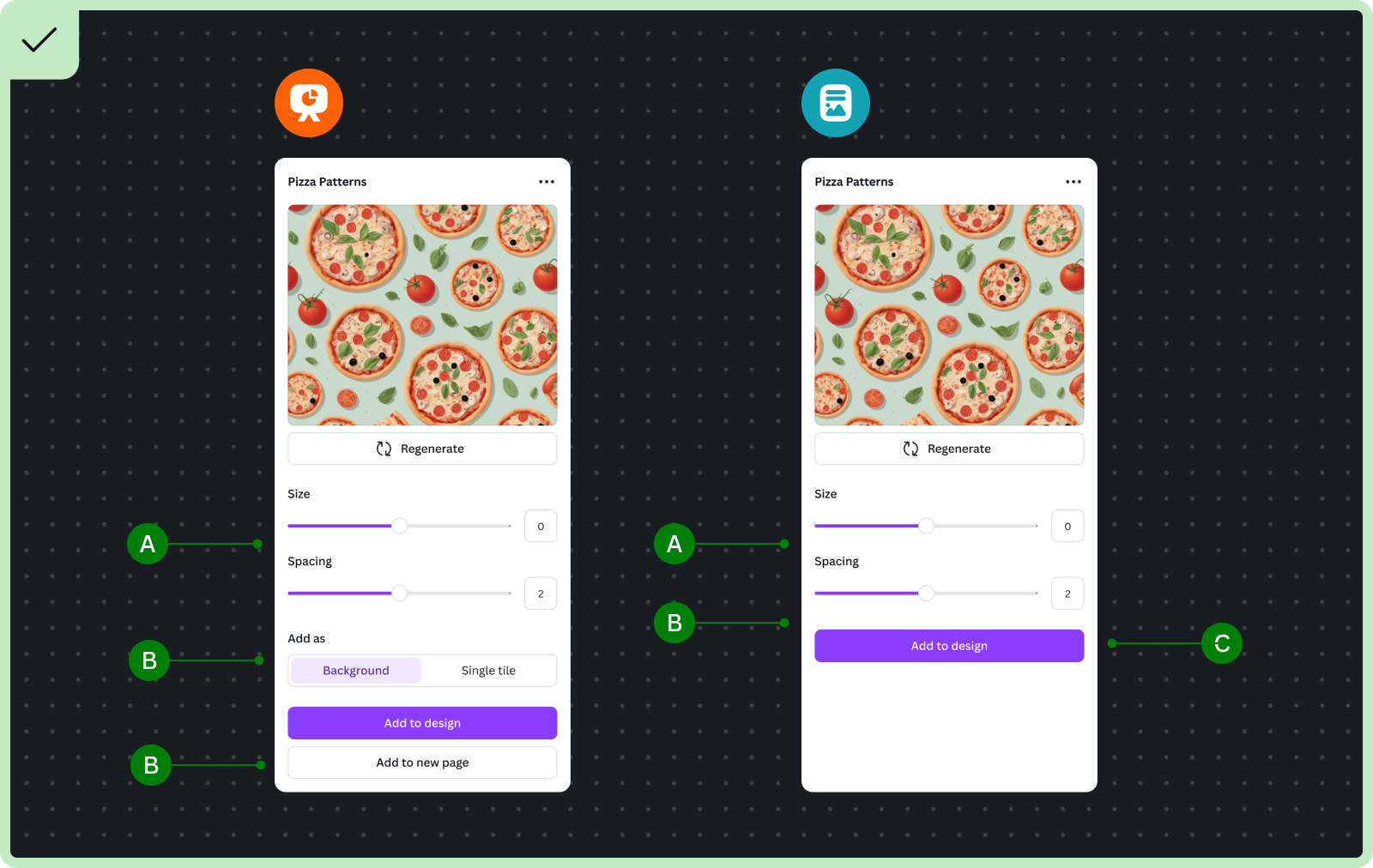
A Do keep a consistent experience across different design types so it remains intuitive, especially for users already familiar with your app.
B Do consider hiding unsupported features to keep the experience simple.
C Do ensure the primary action remains enabled and visible.
Don't
In this example, the page background feature isn't supported in the Docs design type, but is left visible. The app also uses a critical alert at the beginning of the flow to highlight unavailable features.
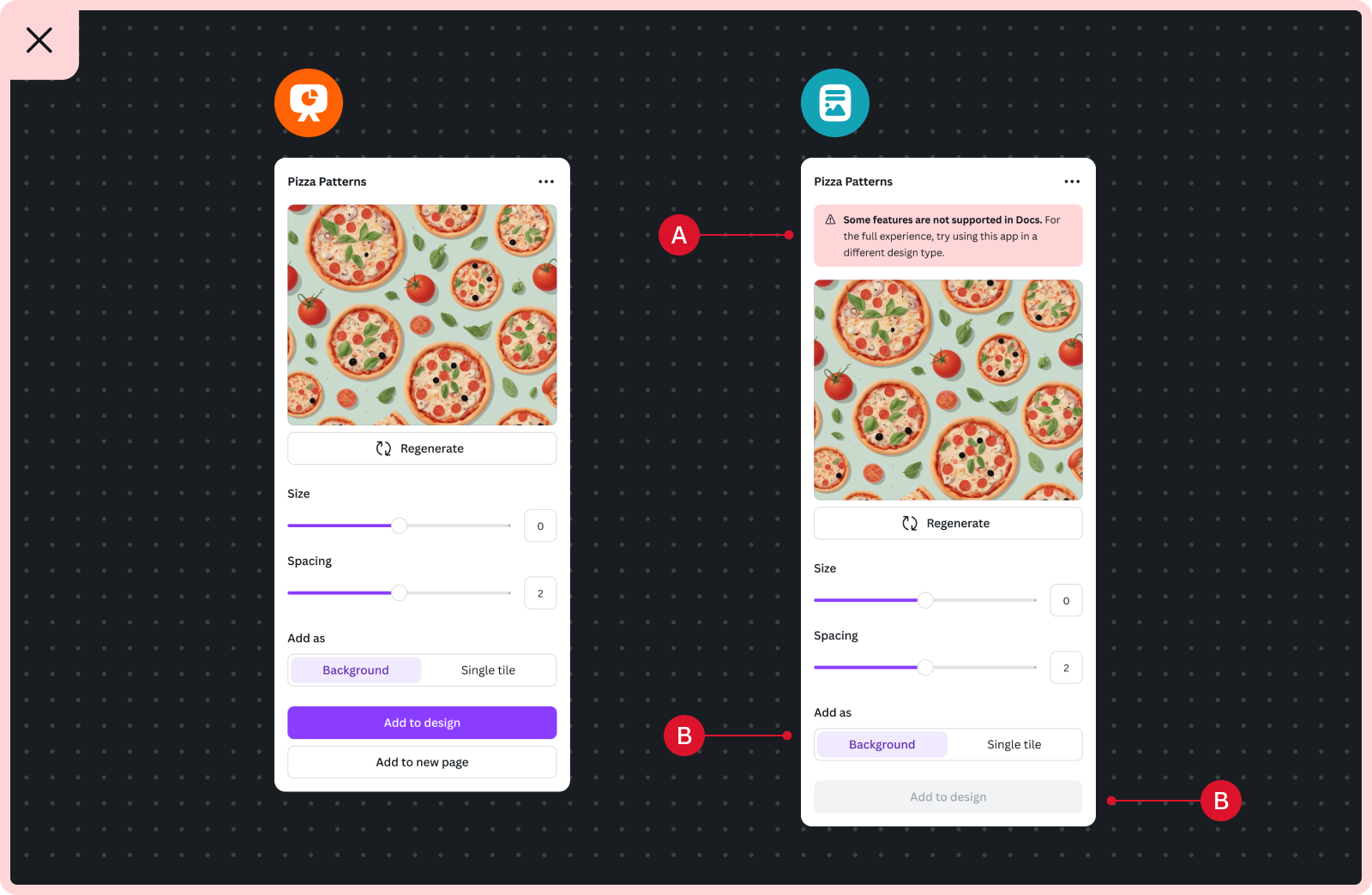
A Don't use critical alerts at the beginning of the flow to highlight unavailable features. This may give users the impression that there's an app error.
B Don't allow users to interact with unsupported features. This could lead to disabling the primary action, errors, or broken flows.
Handle dead-ends with a workaround
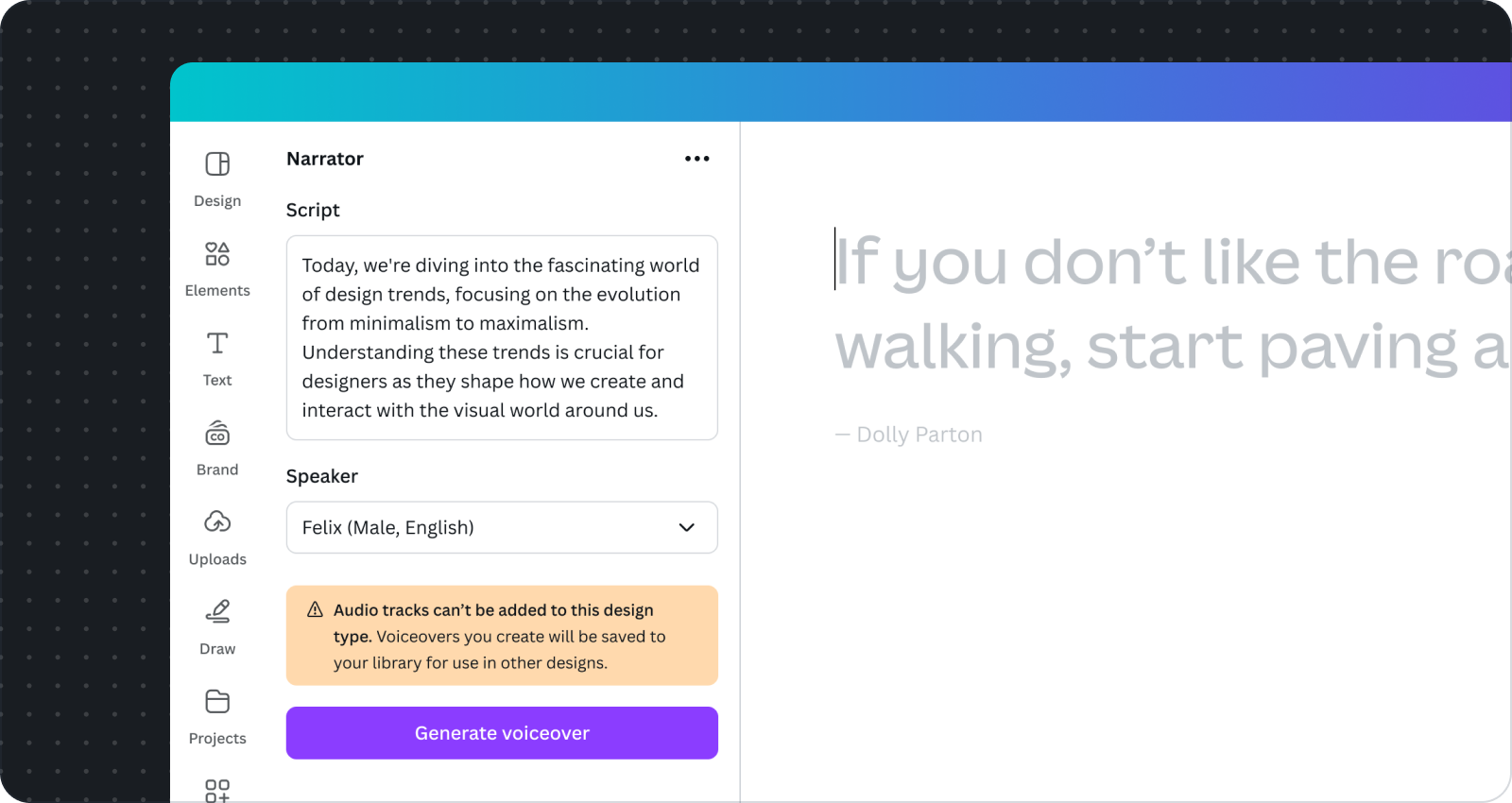
When there are no alternative APIs to achieve a task, provide users with a clear workaround. Options for workarounds could include, but aren't limited to:
- Guiding users through manual steps.
- Offering alternate methods to achieve their goals with the app's primary functionality.
For example, if recording and adding audio files isn't supported in certain design types, the app can upload these to the user's library instead.
- Do inform users upfront about any unavailable features.
- Do provide users with a workaround, and make sure it's achievable with the least amount of effort.
- Do specify if a certain design type is not supported.
- Don't wait until users have invested significant time or effort before informing them of unavailable features.
- Don't leave users without any guidance or feedback when a feature is unsupported.
- Don't use vague language and instead specify the exact issue or design type.
Highlight the app's use case in the app listing
When writing your app listing, highlight the use cases that your app is designed to work within. The app listing displayed in Canva and the Apps Marketplace contributes to a consistent user experience by establishing expectations.
Select written content and featured images with consideration of available features and design types. Make sure the content is meaningful. This makes it easier for users to understand where and how your app works. Read the App listing guidelines to learn more about what makes an effective app listing.