Test harness
The Canva Apps SDK test harness lets you run and test your Canva app outside of the Canva environment.
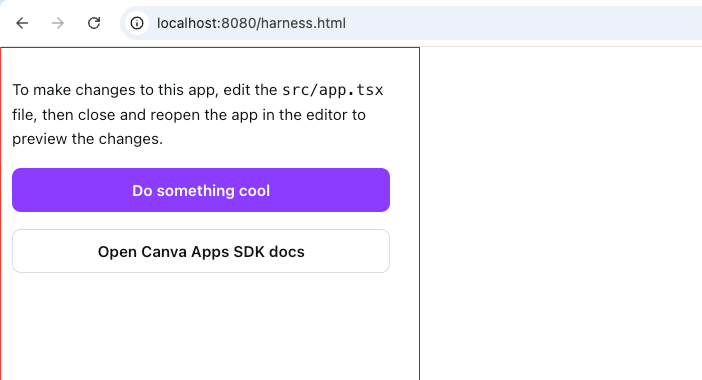
This can be especially useful as a visual assist tool for AI agents, providing them with a clean browser environment to observe and debug your app's UI without the Canva interface as a distraction. This isolation helps AI agents better understand and suggest improvements to your app's interface.
The Canva Apps SDK harness is provided as an experimental resource to support development.
Step 1: Create required directories
First, create the necessary directories in your project root, if they don't already exist:
mkdir -p harness public
Step 2: Create the harness HTML file
Create a file at public/harness.html with the following content:
<!doctype html><html dir="ltr" lang="en" class="cc24 theme dark"><head><title>Canva Apps SDK Test Harness</title><script src="/init.js" defer></script><script src="/harness.js" defer></script></head><bodystyle="width: 360px;height: 770px;padding: 10px;border: 1px solid red;overflow-y: auto;overflow-x: hidden;"><div id="root" style="width: 100%; height: 100%"></div></body></html>
Step 3: Create the harness initialization file
Create a file at harness/init.ts with the following content:
import * as design from "@canva/design/test";import * as asset from "@canva/asset/test";import * as user from "@canva/user/test";import * as error from "@canva/error/test";import * as intents from "@canva/intents/test";import * as platform from "@canva/platform/test";design.initTestEnvironment();asset.initTestEnvironment();error.initTestEnvironment();user.initTestEnvironment();intents.initTestEnvironment();platform.initTestEnvironment();
Step 4: Create the harness app file
Create a file at harness/harness.tsx with the following content (replace src/app.tsx with the path to your app's main component):
import React from "react";import { TestAppUiProvider } from "@canva/app-ui-kit";import { createRoot } from "react-dom/client";import { App } from "../src/app"; // Change this path to your app's main componentimport "@canva/app-ui-kit/styles.css";import { TestAppI18nProvider } from "@canva/app-i18n-kit";const root = createRoot(document.getElementById("root") as Element);function render() {root.render(<TestAppI18nProvider><TestAppUiProvider><App /></TestAppUiProvider></TestAppI18nProvider>,);}render();if (module.hot) {module.hot.accept("../src/app.tsx", render); // Change this path to your app's main component}
Step 5: Update your webpack configuration
If your app uses @canva/app-scripts, skip this step. Both its Rsbuild and webpack adapters already read the IN_HARNESS environment variable and resolve the conventional harness entry, init, and HTML files from steps 1 to 4, so there's no config file to edit.
If you have created your app from the Canva CLI (using canva apps create, since version 0.0.1-beta.28), you might already have IN_HARNESS configured.
If your app still has its own webpack.config.ts, modify it to support the harness environment. The following diff shows the required changes for your webpack configuration.
export function buildConfig({devConfig,appEntry = path.join(process.cwd(), "src", "index.tsx"),backendHost = process.env.CANVA_BACKEND_HOST,+ inHarness = process.env.IN_HARNESS?.toLowerCase() === "true",}: {devConfig?: DevConfig;appEntry?: string;backendHost?: string;+ inHarness?: boolean;} = {}): Configuration & DevServerConfiguration {// ...return {mode,context: path.resolve(process.cwd(), "./"),- entry: {- app: appEntry,- },+ entry: inHarness+ ? {+ harness: path.join(process.cwd(), "harness", "harness.tsx"),+ init: path.join(process.cwd(), "harness", "init.ts"),+ }+ : {+ app: appEntry,+ },target: "web",resolve: {alias: {styles: path.resolve(process.cwd(), "styles"),src: path.resolve(process.cwd(), "src"),},extensions: [".ts", ".tsx", ".js", ".css", ".svg", ".woff", ".woff2"],},infrastructureLogging: {- level: "none",+ level: inHarness ? "info" : "none",},module: {rules: [// ...],},...buildDevConfig(devConfig),};}
Step 6: Run the test harness
Start the dev server with the test harness environment variable set:
-
If your app uses
@canva/app-scriptsand you have the Canva CLI installed:IN_HARNESS=true canva apps startBASH -
If your app still has its own
webpack.config.tsand hasn't migrated to@canva/app-scripts, start the webpack dev server directly instead:IN_HARNESS=true npx webpack serve --config webpack.config.ts --mode developmentBASH
Step 7: View your app in the test harness
Open your browser and navigate to http://localhost:8080/harness.html(opens in a new tab or window)
You should now see your app running in the test harness environment.
Troubleshooting
-
Webpack configuration issues
- Check that your webpack configuration correctly handles the
IN_HARNESSenvironment variable. - Check that the entry points for harness files are correctly configured.
- Check that your webpack configuration correctly handles the
-
Path issues
- Check that the import path in
harness/harness.tsxcorrectly points to your app's main component. - Check that the hot module replacement path matches your app's main component path.
- Check that the import path in
-
Dependencies
- Check that you have all required Canva SDK packages installed:
@canva/app-ui-kit@canva/app-i18n-kit@canva/design@canva/asset@canva/user@canva/platform
- Check that you have all required Canva SDK packages installed:
Cleanup
When you're done testing, you can stop the webpack dev server and remove the harness artifacts. Alternatively, you can add the harness artifacts to your .gitignore file.
# Stop the webpack dev server (Ctrl+C)# Then remove the harness directoriesrm -rf harness public/harness.html