User experience guidelines
These guidelines cover the experience of an app built on the Canva REST APIs, from the moment a user connects their Canva account to the moment they disconnect it. For the practices that apply while building one, see Recommended practices.
Prioritize a great user experience in your product. Understand who you're designing for and tailor your app to their goals and needs.
Enable smooth user authentication
Make sure users can successfully connect to your app, where completing the authentication process closes the window and returns them to a relevant part of your product. Unauthenticated users cannot access authenticated flows. Connected users should remain connected across all browsers and devices. For more information, see the User interface (UI) Guidelines.
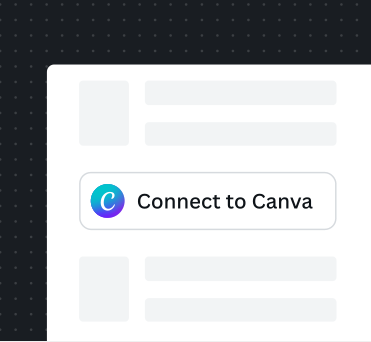
Let users easily find the Canva button from your interface.
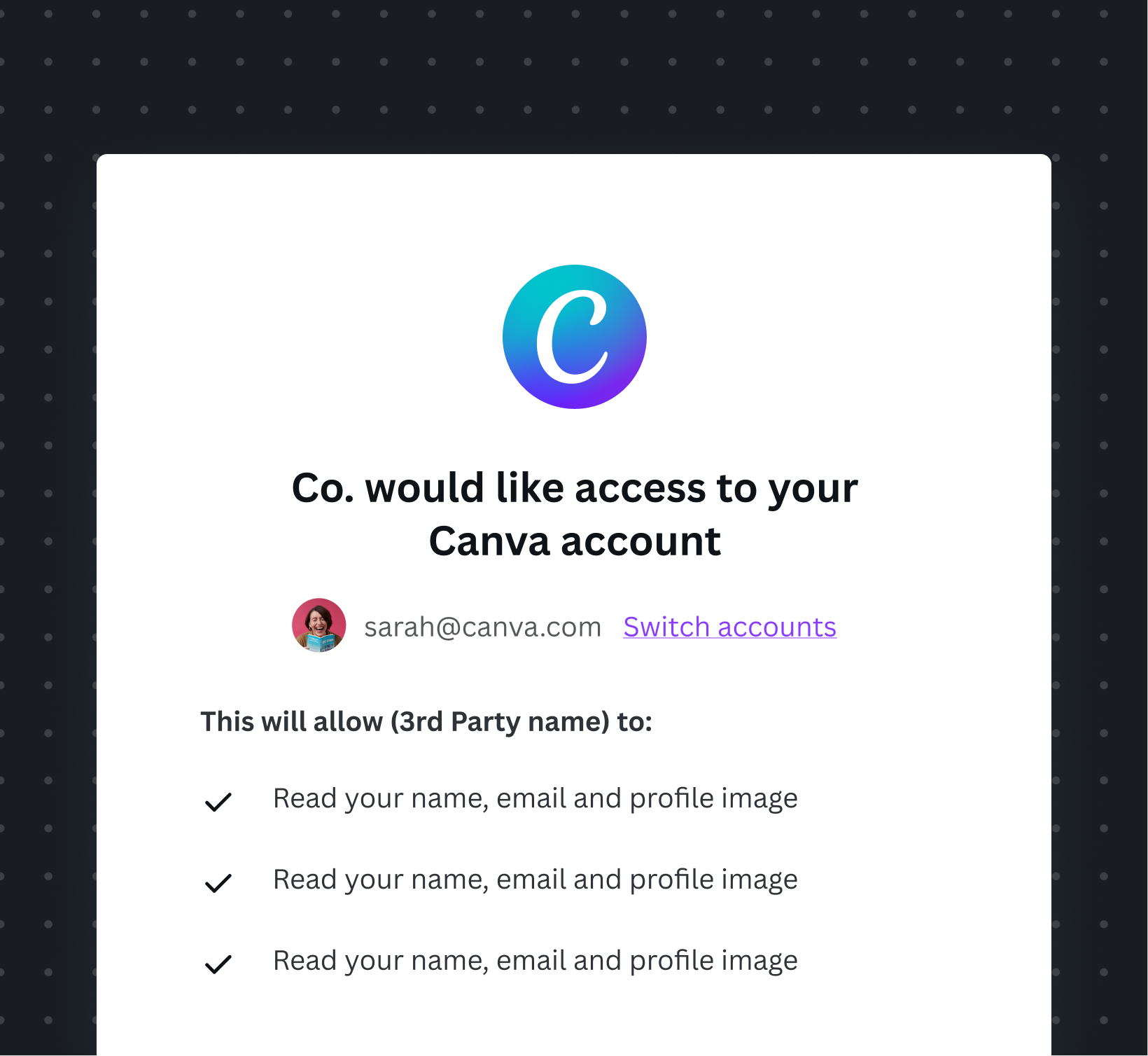
Let users authenticate using this screen, and close the window to return to the connected state.
Account and disconnection
Once the user grants access, inform them that their Canva Account is connected and being used. For clarity, display account details and offer a clear way to disconnect their Canva account within your app.

Clearly show users that their Canva account is connected to your product. Allow users to disconnect their Canva account from your product in an appropriate part of the UI.
Design for the admin experience
Having an understanding of the journey that admins go through helps you design and create the best user experience for them. Provide a clear way for admins to discover, install, manage, and disconnect your app on your product.
Consider accessibility requirements
Make sure your app is usable by all users, including those with disabilities. Provide alternative text for images, clear button labels, logical keyboard navigation, and high-contrast colors. Refer to Canva’s Accessibility guidelines(opens in a new tab or window) to learn more on how we maintain minimum AA accessibility level across all our experiences.
Use clear, simple language
When describing your app, you should:
- Focus on the user experience: What does your app do? What can people use it for?
- Keep it simple: How much information are you trying to compress into your message? Is it too complex? Can you simplify it?
- Think about the user’s context: Will someone with no experience understand what you mean? What about those using your app for the 100th time?
- Be specific: Do the words make it clear what the user can do, or what will happen next?
Provide consistent loading states
Sometimes it might take a while to load designs or folders from Canva, so use loading screens to make sure users understand this. Consider showing partial results loading for paginated resources, such as designs and folders, while waiting for additional pages to load.

Provide an indication that Canva designs or folders are loading, while the users wait.
Provide educational or help resources
Educate users on how to use Canva's features within your app, through tooltips, onboarding UI, and links to documentation. In the documentation, include the value and benefits of using Canva in your app and provide instructions on how to install, authenticate, and use your app.
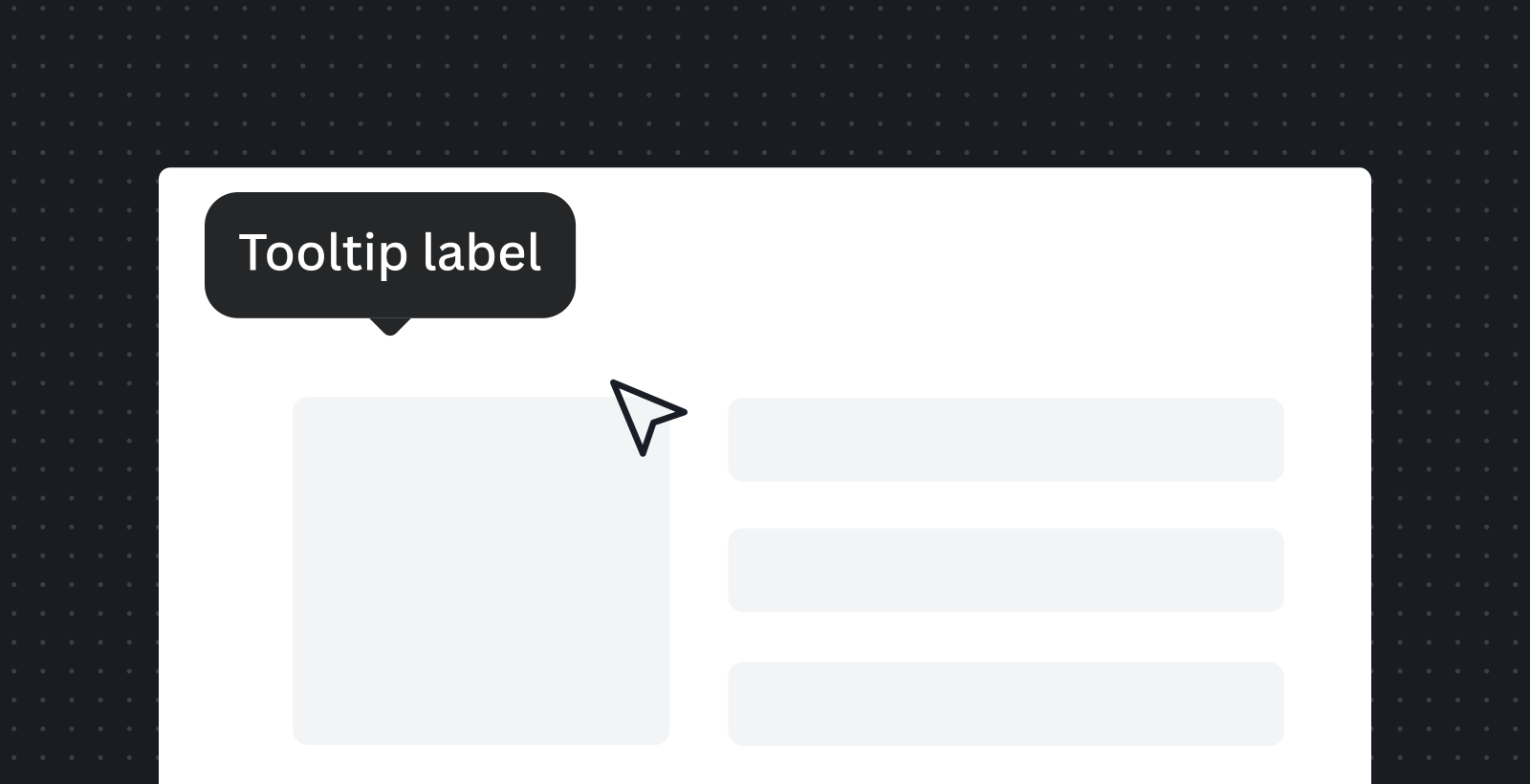
Add tooltips and helpful text to distinguish the designs and their actions.