Permissions
At Canva, the privacy of our users is a top priority, but there are many valid reasons for apps to have access to their data. To balance these concerns, the Canva Developers SDK has a permissions system that lets developers access user data while ensuring that users remain informed and in control of what data is accessed.
How permissions work
In the Developers SDK, some methods have an associated permission. If an app uses one of these methods, the permission must be enabled with either the Developer Portal or the Canva CLI. If the permission isn't enabled, the app can't be approved for release.
By requiring apps to enable permissions, Canva can inform users of what data the app will have access to — and what the app can do with that data — before the user installs it.
The user experience
Before a user installs an app, they're shown a screen that explains what the app is and what permissions are required to install it. If an app doesn't require any permissions, no requirements are listed.
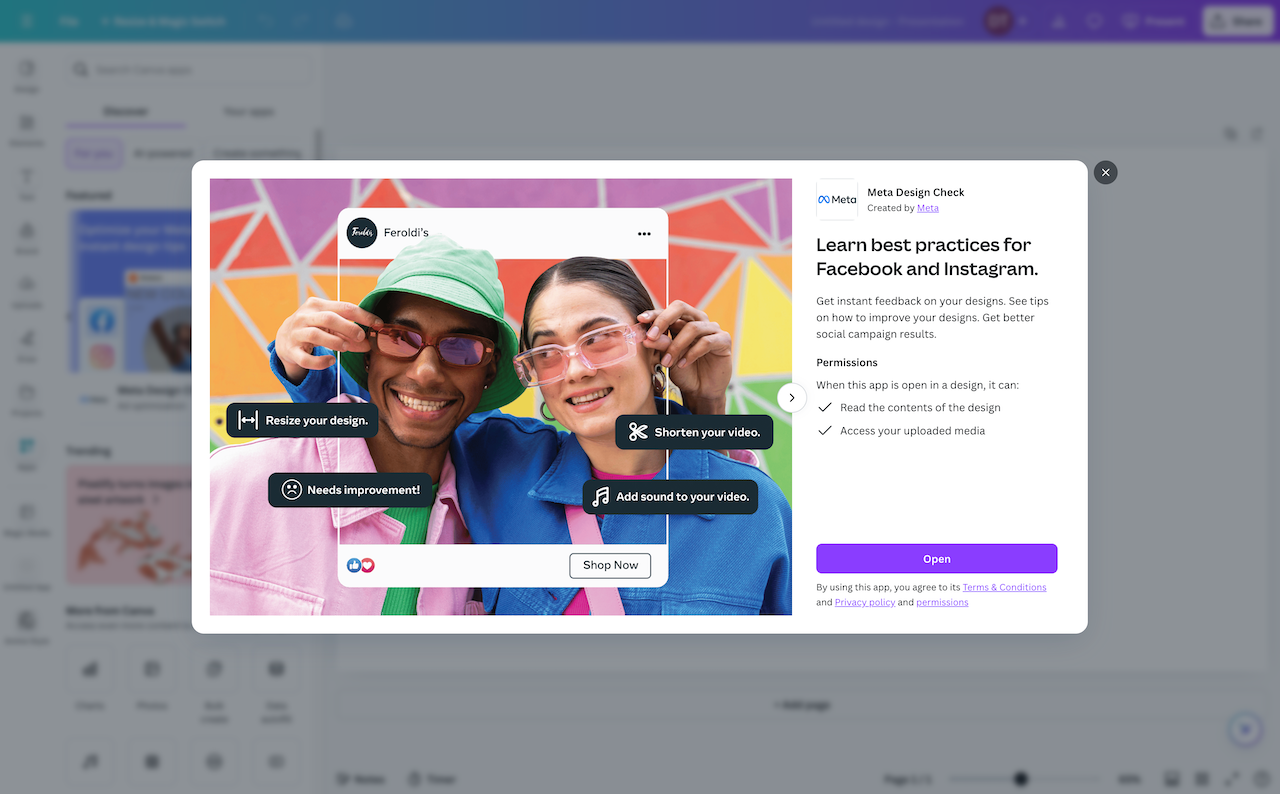
If the user doesn't accept the app's permissions, the app can't be installed.
If a user uninstalls an app, all permissions are revoked.
What permissions are required?
The permissions required by an app depend on the methods called by the app. For the complete list of permissions, along with the methods associated with those permissions, see List of permissions.
How to configure permissions
You can configure permissions for your app with either the Developer Portal or the Canva CLI:
-
Navigate to an app via the Your apps(opens in a new tab or window) page.
-
Go to Inside Canva > Permissions, and enable the required permissions.
Each permission is prefixed with
canva:. Don't confuse them with the Scopes section on Outside Canva > Configuration, which holds the unprefixed scopes for the Canva REST APIs.Permissions appears under Inside Canva once the app has at least one intent.
-
Set up your app to use the Canva CLI to manage settings via the canva-app.json file.
-
Add the required permissions to the
runtime.permissionsproperty. For more information, see canva-app.json.For example, the following adds the Design read and Design write permissions.
{"runtime": {"permissions": [{"name": "canva:design:content:read","type": "mandatory"},{"name": "canva:design:content:write","type": "mandatory"}]}}JSON
List of permissions
This section lists the permissions that can be enabled for an app, including the methods that require the permission to be enabled. The required permissions are also listed on the API reference pages for each method.
canva:design:content:read
The app may read the content of the user's design.
The following methods require this permission to be enabled:
editContentgetCurrentPageContextgetCurrentPageMetadatagetDesignColorsgetDesignMetadatainitAppElement, if the app calls theregisterOnElementChangemethodopenColorSelectoropenDesignrequestExportselection.registerOnChange, if the app calls thereadmethod
canva:design:content:write
The app may modify the content of the user's design.
The following methods require this permission to be enabled:
addAudioTrackaddElementAtCursoraddElementAtPointaddNativeElementaddPageeditContent, if the app calls thesyncmethodinitAppElement, if the app calls theaddElement,addOrUpdateElement, orupdatemethodsopenDesign, if the app calls thesyncmethodselection.registerOnChange, if the app calls thesavemethodsetCurrentPageBackgroundui.startDragui.startDragToCursorui.startDragToPoint
canva:asset:private:read
The app may download assets from the user's media library.
The following methods require this permission to be enabled:
canva:asset:private:write
The app may upload assets to the user's media library.
The following methods require this permission to be enabled:
canva:brandkit:read
The app may read data from brand kits that the user can access.
The following methods require this permission to be enabled:
canva:brandtemplate:read
The app may read metadata and contents from brand templates that the user can access.
The following methods require this permission to be enabled: