Verify your Canva MCP app
We're continually improving the Canva MCP server. Got a feature request or bug report? Let us know in the Canva Developer Community(opens in a new tab or window).
Setting up an AI assistant like ChatGPT or Claude to use Canva for your own designs? See the AI Connector help article(opens in a new tab or window). This guide is for teams integrating the Canva MCP server into their own AI product.
MCP Inspector(opens in a new tab or window) is a browser-based MCP client for connecting to a server, listing tools, and inspecting raw requests and responses. Use it as a known-good reference: if Inspector returns the expected result and your app doesn't, the fault is in your app. If Inspector fails too, it's upstream.
Prerequisites
- An AI application integrating the Canva MCP server.
- An MCP client registered with Canva, authenticated using OAuth.
- The Canva MCP server URL:
https://api.canva.com/connect/v1/mcp.
Step 1: Connect and list your tools
List tools from your client rather than assuming a fixed set.
-
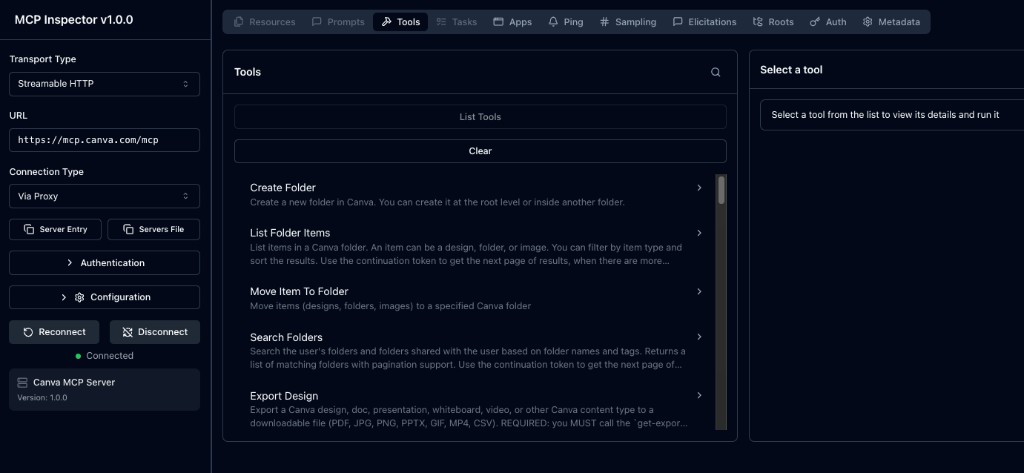
Start MCP Inspector (requires Node.js v22.7.5 or later):
npx @modelcontextprotocol/inspector@latestSHELL -
Set Transport to
Streamable HTTP, enter your MCP server URL, select Connect, and sign in to Canva. -
Open Tools, then select List Tools.
-
Call a read tool such as
search-designs. Confirm it succeeds and returns the expected response. Compare the response with the same call from MCP Inspector.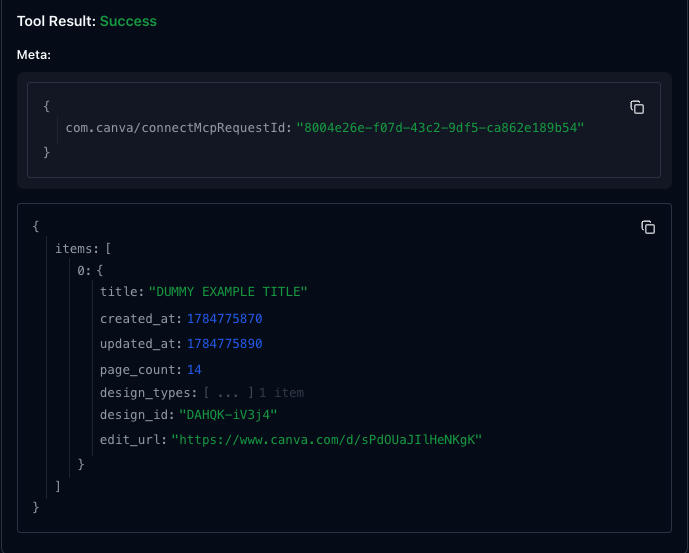
If a step fails, see Troubleshooting.
Debug your app with MCP Inspector
If your AI application behaves differently from MCP Inspector, use Inspector as your known-good reference implementation. Reproduce the same tool call in Inspector with the same arguments, then compare the raw request and response. This will help you determine whether the issue is in your app or upstream.
- Inspector succeeds, your app fails → The issue is likely in your app (request formatting, response parsing, or job vs direct response handling).
- Inspector and your app fail in the same way → The issue is likely upstream. Check
error.codeon thejobobject when present. - Responses differ → Compare field names carefully. For example:
- Use
idrather thandesign_id. - Download links are returned in
urls[]notdownload_url. - Editable
element_ids come fromstart-editing-transaction, notget-design-content. - The job identifier is
job.id.
- Use
- URLs don't load → Export and
media.canva.comURLs are signed and expire (see export-design and get-design-pages).design.canva.aithumbnails may need redirects resolved before rendering in an<img>(see generate-design).
Step 2: Verify each tool
Compare your application’s responses against the documented example responses for each tool. Confirm the response structure, required fields, and any asynchronous job handling match the documentation.
Discovery
Generation
Editing
Open a transaction → apply operations → commit. Edits stay in draft until commit.
Assets and export
Cross-tool checks
- Invalid input fails cleanly (no hang/crash).
- Full round-trip: create → open → edit → commit → export; export reflects the commit.
- Per-user isolation: credentials can't access another user's designs.
Step 3: Verify natural language tool selection
Send the following prompts to your AI application and confirm it selects the expected Canva tool. Repeat these checks after changing prompts, system instructions, or tool descriptions.
Prompt | Expected call | Expected result |
|---|---|---|
"Find my onboarding designs" | search-designs | a relevant list is returned |
"Create an Instagram post for our summer sale" | generate-design | candidates are returned to choose from |
"Use the second option" | create-design-from-candidate | a new design with an edit link is returned |
"What text is on this design?" | get-design-content | the design's text is returned |
"How many pages are in this deck?" | get-design-pages | the page list is returned |
"Open this design so I can edit it" | start-editing-transaction | a transaction and editable elements are returned |
"Change the headline to 'Summer Sale'" | perform-editing-operations | the edit is applied in draft |
"Save those changes" | commit-editing-transaction | status is committed |
"Export this as a PDF" | export-design | a download link is returned |
Also confirm edit routes to perform-editing-operations (not regenerate), and create routes to Canva when other servers are connected (see Step 5).
Step 4: Verify end-to-end workflows
Test complete workflows rather than individual tools. Many integration issues only appear when chaining multiple tools together and passing data between them.
Read before targeted edit. "Show me the copy on this design, then change only the subheading."
get-design-content → start-editing-transaction → perform-editing-operations → commit-editing-transaction.
get-design-content has no editable element_ids — those come from the transaction.
Upload an asset, then place it. "Add this logo to the design: https://<public-image-url>"
upload-asset-from-url → start-editing-transaction → perform-editing-operations with the returned asset_id (update_fill / insert_fill).
Don't pass the raw URL into the edit. If upload-asset-from-url returns fetch_failed, confirm the URL is public HTTPS and returns 200, then retry before continuing without an asset_id.
Create, then generate an image for it. "Create a launch poster, then add an AI-generated background image."
Create should call Canva generate-design; the image step is where models often divert to built-in image gen (see Step 5).
Step 5: Test tool selection across multiple servers
With multiple MCP servers connected, design prompts may never reach Canva if another tool looks similar (including native image generation).
Connect Canva alongside another server, send ambiguous prompts, and confirm Canva is called:
Prompt | Should call |
|---|---|
"Create a design for our launch" | Canva generate-design |
"Make a poster for the event" | Canva generate-design |
"Update the text on this design" | Canva start-editing-transaction |
If Canva loses the call:
- System-prompt guidance / explicit "in Canva" phrasing.
- Pin or force the tool when the client supports it.
- Reduce overlapping tools in context.
- Ask the user which server to use when it's ambiguous.
Common tool-call mistakes
- Auto-selecting a generated candidate instead of requiring a user choice.
- Fabricating a
candidate_idortransaction_id. - Reporting an edit as saved before
commit-editing-transaction. - Passing a raw image URL into an edit — upload first for an
asset_id.
Automating your tests
After the manual checks are stable, script them into CI: tool list, one call per tool, error cases, and the prompt library. Postman (MCP requests) and MCPJam (tool-selection evals) are common options.
Troubleshooting
- Expected tool missing: Client may not expose it — check Step 1.
- Auth fails: Token expired; redirect URI not registered; Inspector CLI can't do interactive sign-in (use the UI or
mcp-remote). - Tool error: Args vs input schema — usually a missing field or wrong type.
upload-asset-from-url→fetch_failed: URL must be public HTTPS.- Wrong server called: See Step 5.
- Edits didn't persist: Commit required. Concurrent browser edits can stale the transaction — cancel, start fresh, re-apply, commit.
- Fails in Inspector too: Likely upstream — check the Canva status page(opens in a new tab or window) (Connect API).
Security and privacy
- Per-user OAuth; users only access their own designs.
- Signed thumbnail/export/download URLs are short-lived — don't store or share them.
- Uploads and generated designs land in the authenticated user's account.