Canva Model Context Protocol (MCP)
This documentation is for IT admins integrating Canva into your company's internal tools and platforms, and for teams building AI assistants, platforms, or connectors that want to offer Canva as a capability to your users.
If you're a user wanting to connect your personal AI assistant to Canva's AI Connector, see our Help Center(opens in a new tab or window).
The Canva MCP server enables AI assistants to seamlessly interact with Canva's design capabilities. By exposing Canva's capabilities (including design creation and editing, asset and brand management, library search, export, and commenting) as MCP-compatible tools, you can give your users access to Canva's design capabilities through natural language, directly from the AI tools they already use.
What's MCP?
The Model Context Protocol (MCP)(opens in a new tab or window) is a standardized interface that allows AI agents to interact with data sources and tools. Canva provides a remote MCP server that gives your AI assistant access to Canva's design APIs and capabilities.
What you can do
The Canva MCP unlocks the following capabilities for AI assistants:
- Design generation: Create designs programmatically from text descriptions and specifications
- Design editing: Apply targeted modifications to existing designs through natural language commands
- Design discovery: Search and retrieve designs, pages, and folders from your design library
- Asset and brand management: Upload and organize assets, manage folders, and access brand kits and templates
- Design export: Generate exports in multiple formats (PDF, PNG, JPG, PPTX, MP4, and so on) and resize designs for different channels
- Collaborative workflows: Add comments to designs and integrate feedback loops directly into your workflows
Getting started
Prerequisites
- A Canva account (any plan)
- An AI tool or assistant that supports the Model Context Protocol
1. Register your redirect URI
To add your redirect URI to the Canva MCP allowlist, register with our Intake form(opens in a new tab or window).
-
Tell us about your company, integration goals, technical requirements, and timeline so we can understand how you plan to use the Canva MCP server.
-
Our team reviews submissions for brand alignment, trust and safety considerations, compliance readiness, technical fit, and strategic alignment.
-
We’ll reach out if we need additional information and share next steps, including eligibility status and integration guidance. You receive notifications at the email address used during intake.
We aim to respond to all submissions within 5-7 business days. More complex integrations may require additional review time.
2. Configure your AI assistant
Canva uses a remote MCP server at https://mcp.canva.com/mcp.
If your agent doesn't support a remote MCP server, use stdio with mcp-remote npm package.
Here is an example setup in VS Code:
{"servers": {"Canva": {"type": "stdio","command": "npx","args": ["-y","mcp-remote@latest","https://mcp.canva.com/mcp"]}}}
If you're looking for guides to connect to popular AI tools like Claude, ChatGPT, Gemini, Cursor, and VS Code, you can find setup instructions in Set up the Canva AI Connector.
3. Set up the connection
Once MCP access is enabled, when you use the Canva tools, you should be prompted to log in and allow your AI assistant to access Canva. Each user needs to authenticate.
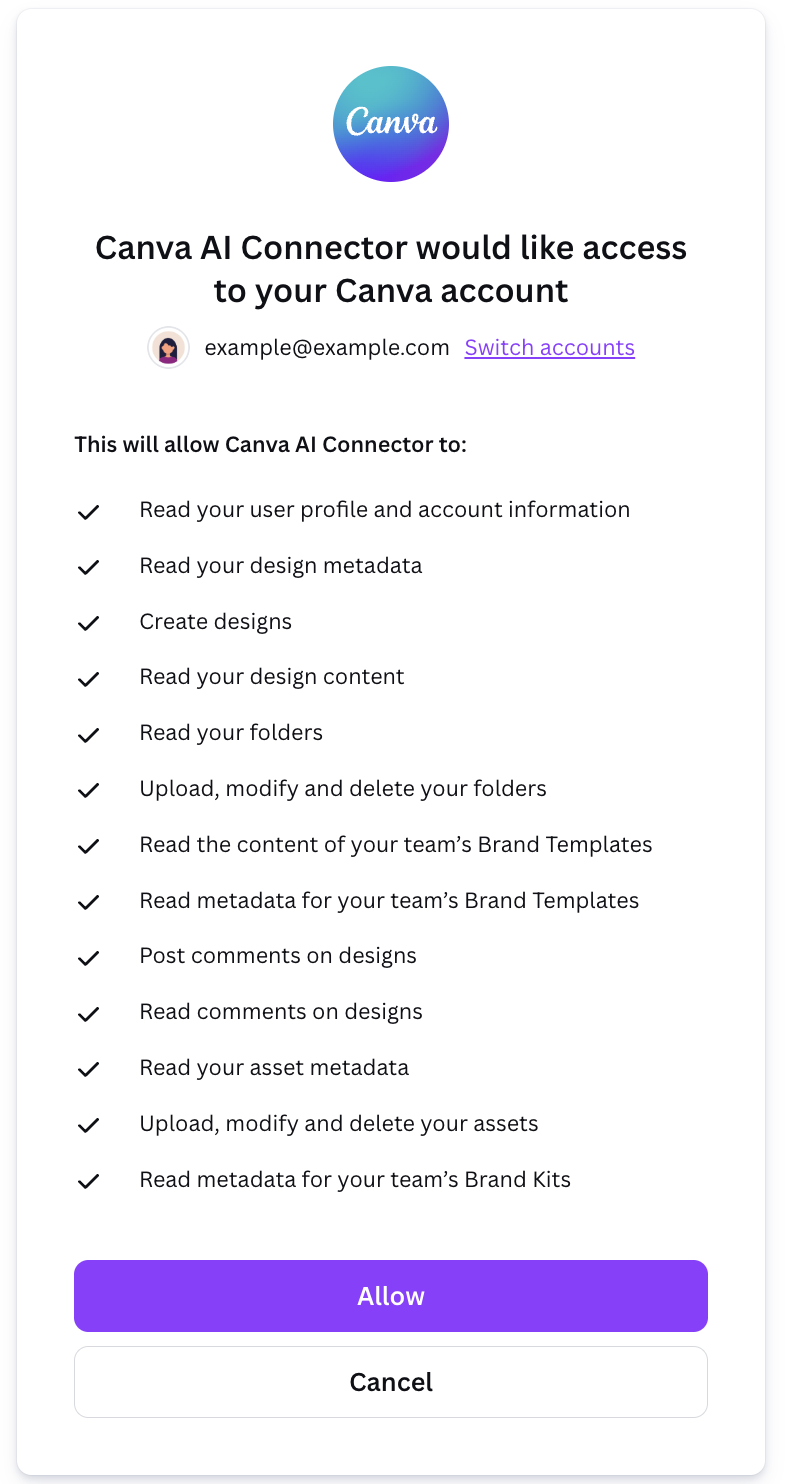
After you receive an 'authorization successful' message, you will be redirected back to your AI assistant's connection setup page.
4. Test the connection
Once successfully connected, ask a simple question to test the connection. For example:
Show me my most recently edited Canva design
If your connection is successful, your client should display a tool usage prompt for you to approve. Approve the tool, and wait for the response.
Access and permissions
Authentication
Dynamic Client Registration (DCR) is the recommended authentication method for MCP. This ensures each new authentication registers a new client, which enables you to track, audit, and revoke individual client instances independently, increasing observability and security.
Canva requires each user to authenticate individually to access the MCP. This also means each user of Canva's tools in your AI assistant will need to have a Canva account. Canva stores and manages designs, assets, and permissions on a per-user basis, not at the organization level.
If your MCP client doesn't support DCR, see Manual authentication.
Permissions
The operations available to a user match their level of access to a design or asset. For example, editing operations are only available on designs and assets for which you have edit permissions.
Availability by plan
Some features require a paid Canva plan:
- All plans: Design generation, editing, search, exports, comments, asset uploads, and most core features
- Canva Pro and above: Design resizing to new dimensions
- Enterprise: Autofill templates with your content, brand kits, and brand templates
Learn more
- Tools and rate limits - Detailed tools list and rate limits by operation
- Troubleshooting common issues - Questions on manual client registration, timeouts, and other FAQs
- Understanding prohibited uses - Canva's Developer Terms of Use apply to usage of the MCP
- Set up the Canva AI Connector - Setup guides for specific, popular AI assistants
- How to use Canva tools in your AI assistant(opens in a new tab or window) - Tips for prompting MCP tools for end users