Creating designs
After setting up the Android SDK, the next step is to allow users to create a design with the Canva editor. This part of the tutorial series explains how to launch the Canva editor from your app.
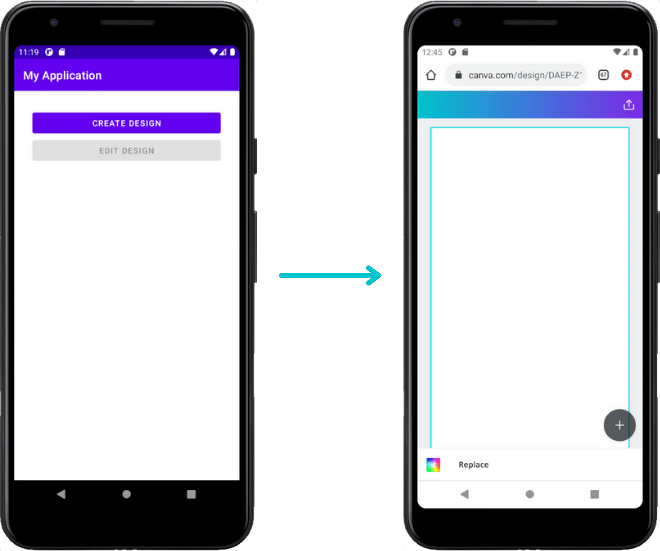
Step 1: Set up the UI
-
Open the
activity_main.xmlfile. -
Switch to the Code or Split view.
-
Replace the
TextViewelement with the following code:<LinearLayoutxmlns:android="http://schemas.android.com/apk/res/android"android:layout_width="match_parent"android:layout_height="match_parent"android:padding="32dp"android:orientation="vertical" ><Buttonandroid:id="@+id/create_design_button"android:layout_width="fill_parent"android:layout_height="wrap_content"android:text="Create design" /></LinearLayout>MARKUPThis code adds a Create design button to the UI. The
LinearLayoutelement ensures that additional elements are nicely stacked within the UI.
Step 2: Open the Canva editor
-
Copy the following statements into the
MainActivity.ktfile:import android.content.Intentimport android.widget.Buttonimport com.canva.button.builder.CanvaEditorimport com.canva.button.callbacks.Disposableimport com.canva.button.callbacks.PublishDataKOTLIN -
In the
onCreatefunction, add an on-click listener to the Create design button:class MainActivity : AppCompatActivity() {override fun onCreate(savedInstanceState: Bundle?) {super.onCreate(savedInstanceState)setContentView(R.layout.activity_main)// Set up the "Create design" buttonval createDesignButton = findViewById<Button>(R.id.create_design_button)createDesignButton.setOnClickListener {// code goes here}}}KOTLIN -
In the on-click listener, use the
buildermethod to create aCanvaEditor.Builderobject:createDesignButton.setOnClickListener {val launcher = CanvaEditor.Launcher.builder("API KEY GOES HERE")}KOTLINBe sure to replace
API KEY GOES HEREwith your API key. -
Use the
setDesignTypemethod to set the design type of the design:createDesignButton.setOnClickListener {val launcher = CanvaEditor.Launcher.builder("API KEY GOES HERE").setDesignType("Banner")}KOTLINThe design type determines the default dimensions of the user's design and the templates that Canva shows to the user. For a complete list of design types, refer to Design types.
-
Launch the editor with the
launchActivityForResultmethod:launcher.launchActivityForResult(this, 132)KOTLINThe first argument is the current activity. The second argument is a request code. This code is required to get the result from an activity(opens in a new tab or window). The request code must be a unique integer. The integer
132has no special meaning.
Based on these changes, clicking the Create design button opens Canva in the browser. If you're already logged into Canva, the editor immediately loads. Otherwise, you need to to sign up for or log into an account.
If the Canva editor fails to load, verify that the API key is valid.
Step 3: Clean-up the on-click listener
-
Add a
disposableproperty to theMainActivityclass:private var disposable: Disposable? = nullKOTLIN -
In the on-click listener, set the
disposableproperty to the value returned by thelaunchActivityForResultmethod:disposable = launcher.launchActivityForResult(this, 132)KOTLIN -
Add an
onDestroymethod to the class and call thedisposemethod on thedisposableproperty:override fun onDestroy() {super.onDestroy()disposable?.dispose()}KOTLIN
Example
activity_main.xml
<?xml version="1.0" encoding="utf-8"?><androidx.constraintlayout.widget.ConstraintLayout xmlns:android="http://schemas.android.com/apk/res/android"xmlns:app="http://schemas.android.com/apk/res-auto"xmlns:tools="http://schemas.android.com/tools"android:layout_width="match_parent"android:layout_height="match_parent"tools:context=".MainActivity"><LinearLayoutxmlns:android="http://schemas.android.com/apk/res/android"android:layout_width="match_parent"android:layout_height="match_parent"android:padding="32dp"android:orientation="vertical" ><Buttonandroid:id="@+id/create_design_button"android:layout_width="fill_parent"android:layout_height="wrap_content"android:text="Create design" /></LinearLayout></androidx.constraintlayout.widget.ConstraintLayout>
MainActivity.kt
package com.example.myapplicationimport android.content.Intentimport android.os.Bundleimport android.widget.Buttonimport androidx.appcompat.app.AppCompatActivityimport com.canva.button.builder.CanvaEditorimport com.canva.button.callbacks.Disposableimport com.canva.button.callbacks.PublishDataclass MainActivity : AppCompatActivity() {private var disposable: Disposable? = nulloverride fun onCreate(savedInstanceState: Bundle?) {super.onCreate(savedInstanceState)setContentView(R.layout.activity_main)val createDesignButton = findViewById<Button>(R.id.create_design_button)createDesignButton.setOnClickListener {val launcher = CanvaEditor.Launcher.builder("API KEY GOES HERE").setDesignType("Banner")disposable = launcher.launchActivityForResult(this, 132)}}override fun onDestroy() {super.onDestroy()disposable?.dispose()}}