Generative AI
Build AI image generation into your app with Canva Craft
Generate visual assets with Canva Craft (`craft_v1_2k`) using Canva’s preview Image generation API, then download the result or save it to a user’s Canva account.
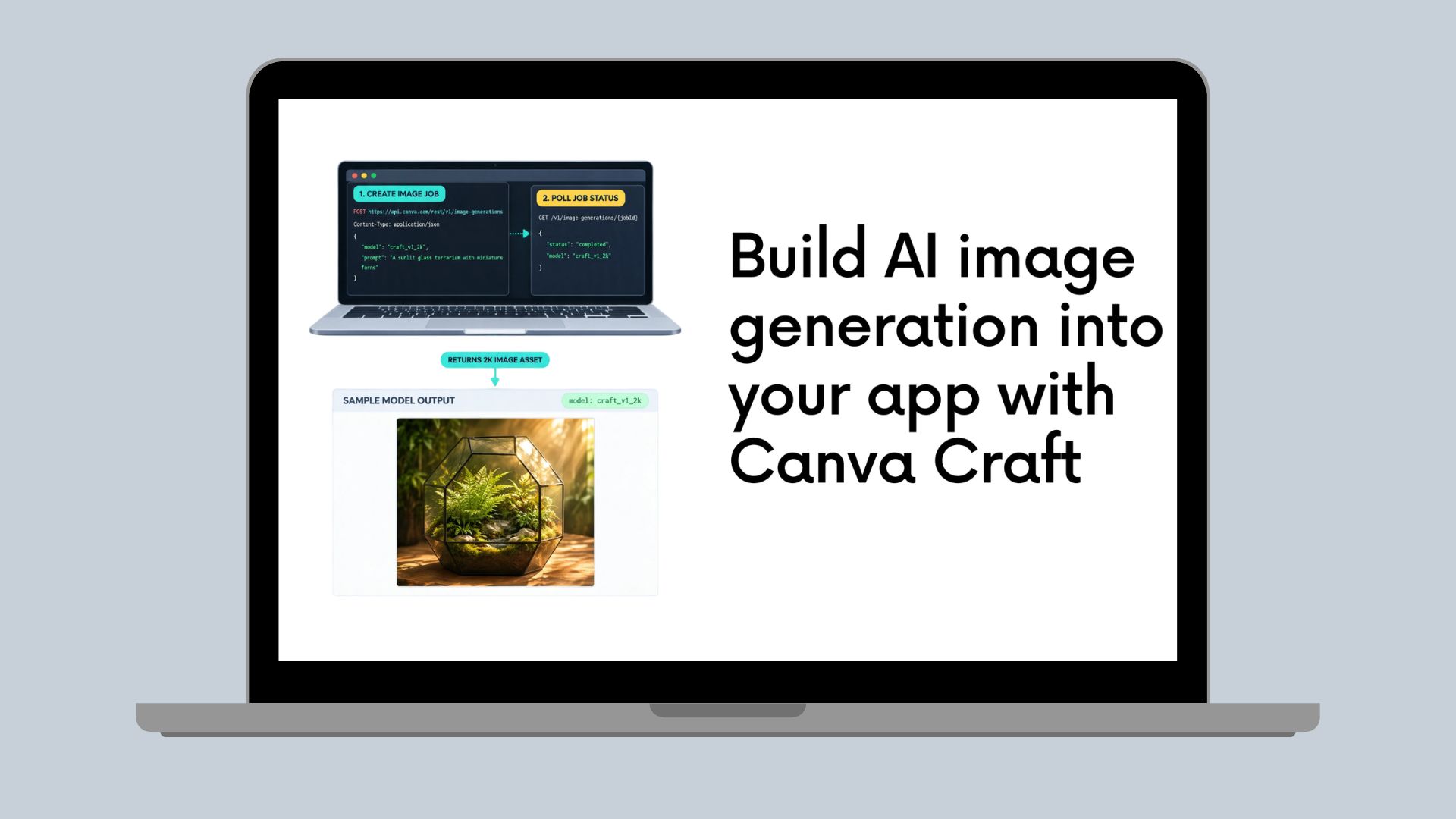
Canva Craft is Canva’s first-party image-generation model, available to developers through the preview Image generation API. The current Craft model is CRAFT-1 2K (craft_v1_2k). Send a text prompt, select Craft, and generate an image to use in your app or save to a user’s Canva account.
The Image generation API is currently in preview and can change without notice. Apps that use the preview API can't pass public-app review or be made available to all Canva users.
Craft is well suited to infographics, posters, slides, people and portraits, abstract art and patterns, landscapes and nature, product imagery, and marketing materials.
What sets Craft apart is its two-stage architecture: it plans the composition before rendering the image. As described in the Canva Craft announcement(opens in a new tab or window), that approach improves precision, consistency, and control for complex layouts, object placement, visual relationships, and text in an image.
Whether you’re prototyping a new creative experience or adding image generation to an existing product, you can get started with a single asynchronous API workflow.
Craft image generation capabilities
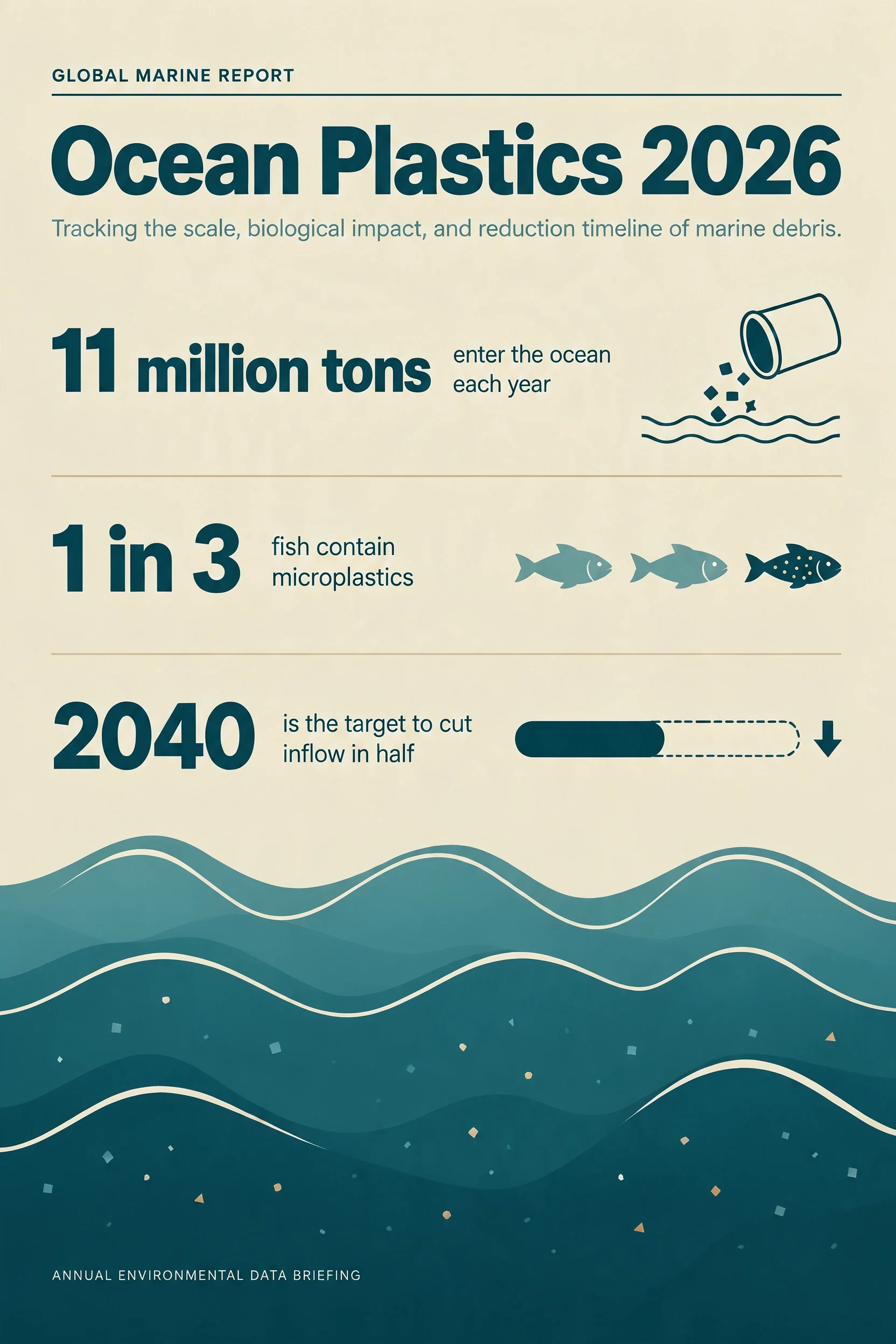
Prompt used with craft_v1_2k
A clean editorial infographic poster titled "Ocean Plastics 2026". Three large stat callouts: "11 million tons" enter the ocean each year, "1 in 3" fish contain microplastics, and "2040" is the target to cut inflow in half. A simple wave illustration, deep teal and sand, generous margins, readable sans-serif type, no watermark.
Example output
Craft at a glance
- Model ID:
craft_v1_2k - API: Canva Image generation API (preview)
- Authentication: OAuth on behalf of the user
- Required app configuration:
asset:writescope - Required user capabilities:
image_generation - Workflow: Create a job, poll for completion, then download the result or save it to Canva
- Credit usage: Each generation uses the user’s AI credit allowance(opens in a new tab or window)
You can check user capabilities with the Get user capabilities endpoint.
Generate an image with Craft
To generate an image with Craft, create an app in the Developer Portal and configure it to use the Canva REST APIs.
-
Create and configure a REST API app.
In the Developer Portal, select Outside Canva, then click Start integrating to enable the REST APIs. On the Configuration page, select the
asset:writescope. -
Authorize the user and confirm their capability.
The Image generation API acts on behalf of a user, so your app must use OAuth and obtain user authorization. You can find Canva's Authorization guide to learn how to authorize users.
The user must also have the
image_generationcapability. You can check this with the Get user capabilities endpoint. -
Create a generation job.
Send a
POSTrequest to the Create image generation job. Addasset_uploadwhen you want the generated image saved to the user's Canva account:{"prompt": "A bold, colorful poster for a neighborhood summer music festival","model": "craft_v1_2k","aspect_ratio": "portrait","asset_upload": {"type": "upload"},"idempotency_key": "<unique UUID for this generation attempt>"}JSONThe
promptandidempotency_keyfields are required. Generate a new UUID for each new generation attempt; don't ship a copied example UUID. Reusing the same key for 24 hours returns the original job, including if that job failed. To make another attempt, use a new key.Without
asset_upload, the completed job returns only a download URL. Withasset_uploadset to{ "type": "upload" }, the completed job returns both the download URL and an image asset in the user's Canva account. -
Poll the job until it completes.
Image generation is asynchronous. Use the Get image generation job to poll the job until it completes. The completed job and its download URL are available for 24 hours.
-
Optionally import the saved image asset as a Canva design.
The Create image-to-design import job endpoint accepts an image asset already in the user's Canva account. It doesn't accept the generation URL or a raw image file.
To use it, first generate the image with
asset_uploadenabled, then import the resulting Canva image asset. Your app also needs thedesign:content:writescope, and the user needs theimage_to_design_importscapability, which requires Canva AI and Magic Layers enabled by their admin in their Canva account. Image-to-design is a preview API and uses additional AI credits.
Build with Craft
Craft is a useful fit for experiences that turn a short brief into a visual starting point:
- Campaign and social-content tools: Generate posters, campaign concepts, and marketing visuals.
- Product experiences: Create product imagery or visual concepts from product context.
- Presentation workflows: Generate a visual asset, save it to Canva, then use it in a presentation or optionally import it into an editable design.
- Creative-assistance tools: Help users turn a written idea into an image they can refine or use in another workflow.
Results vary by prompt, so test Craft with the visual styles, layouts, and subject matter your product needs to support.
Try Craft
Ready to experiment? Create an app in the Developer Portal, and make your first request with craft_v1_2k.
For model options and the latest API details, see the Image generation API guide.