MCP
Canva MCP is now generally available to developers
Connect your AI assistant or platform to Canva's design capabilities with self-serve access to the Canva MCP server.
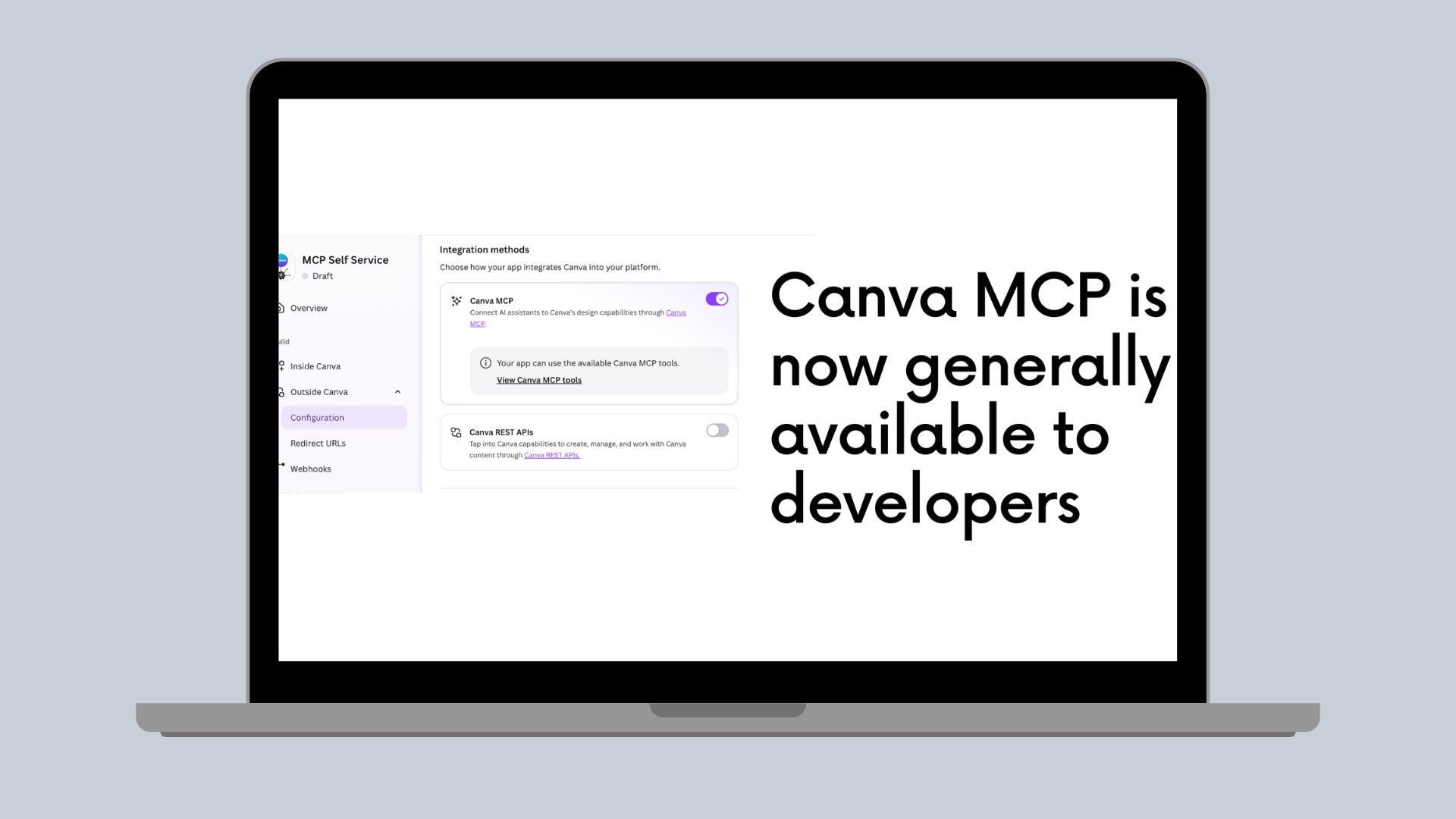
Canva MCP is now generally available to developers building AI assistants, platforms, and connectors. You can create an app in the Developer Portal, enable Canva MCP, and connect to Canva's remote MCP server without applying for access through the waitlist when you use the Developer Portal OAuth client.
With Canva MCP, your users can work with their Canva designs through the AI tools they already use. They can generate designs from a brief, find existing designs, make edits, manage assets, and export their work through natural-language workflows.
What you can build
The Canva MCP server exposes tools for common design workflows, including:
- Creating designs and images from a prompt.
- Searching designs, folders, and pages to find existing work.
- Editing designs, adding comments, and managing assets.
- Exporting designs in formats such as PDF, PNG, JPG, PPTX, and MP4.
The tools let your AI experience connect a user's intent to Canva's design capabilities, while users continue to work with their designs and assets in Canva.
Get started
To connect your AI application to Canva MCP:
-
Create an app in the Developer Portal(opens in a new tab or window).
-
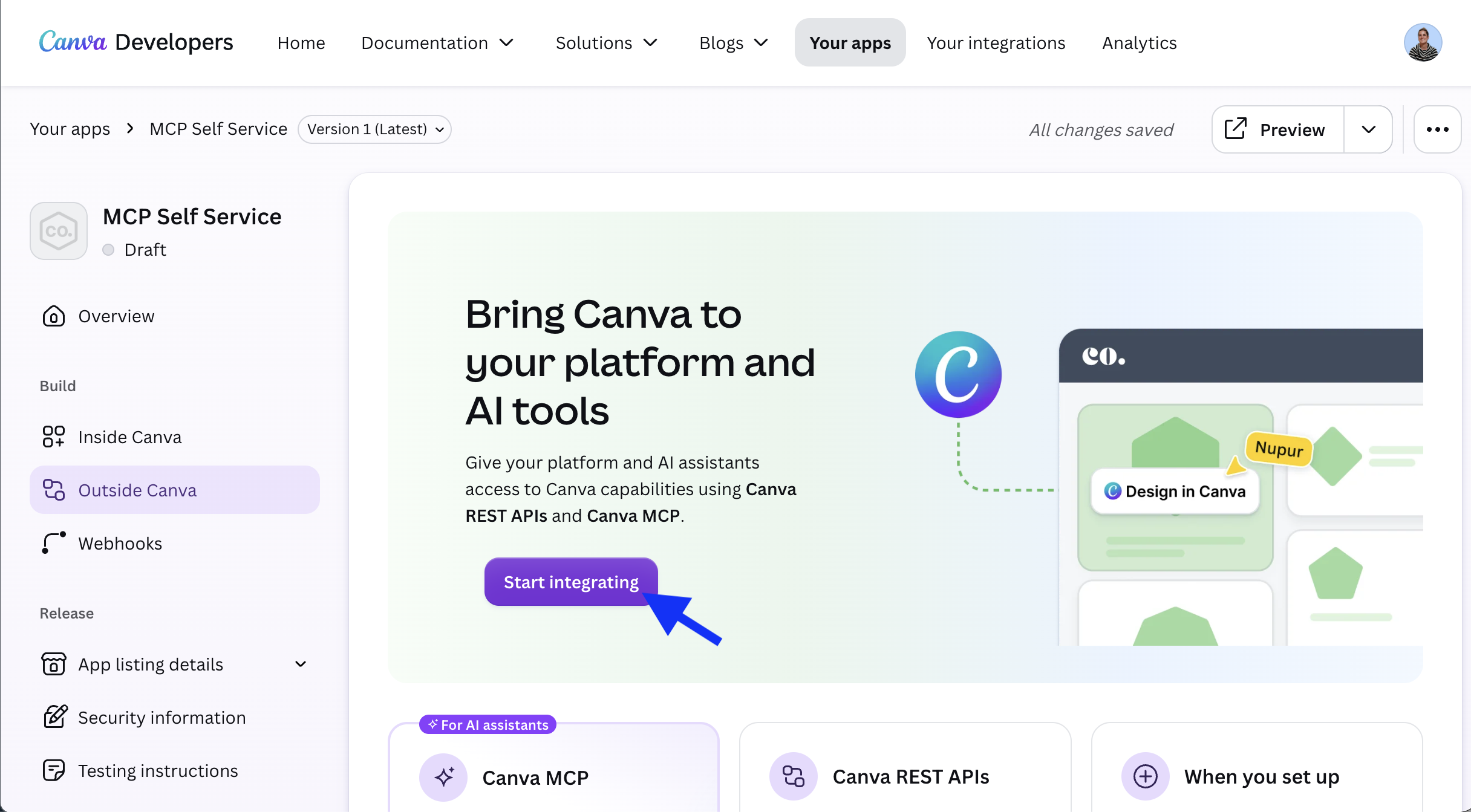
Navigate to Outside Canva, and select Start integrating.
-
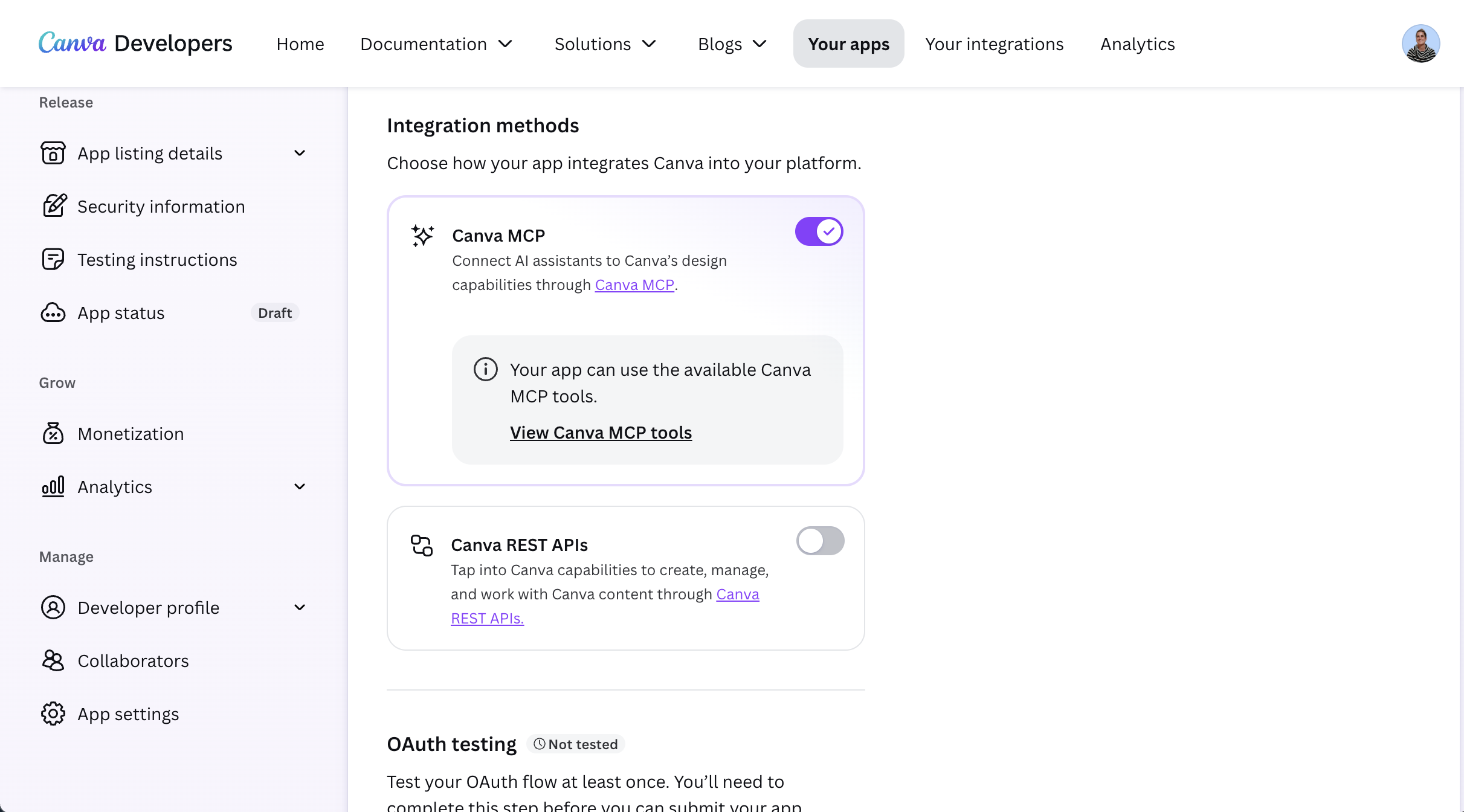
Under Integration methods, turn on Canva MCP.
-
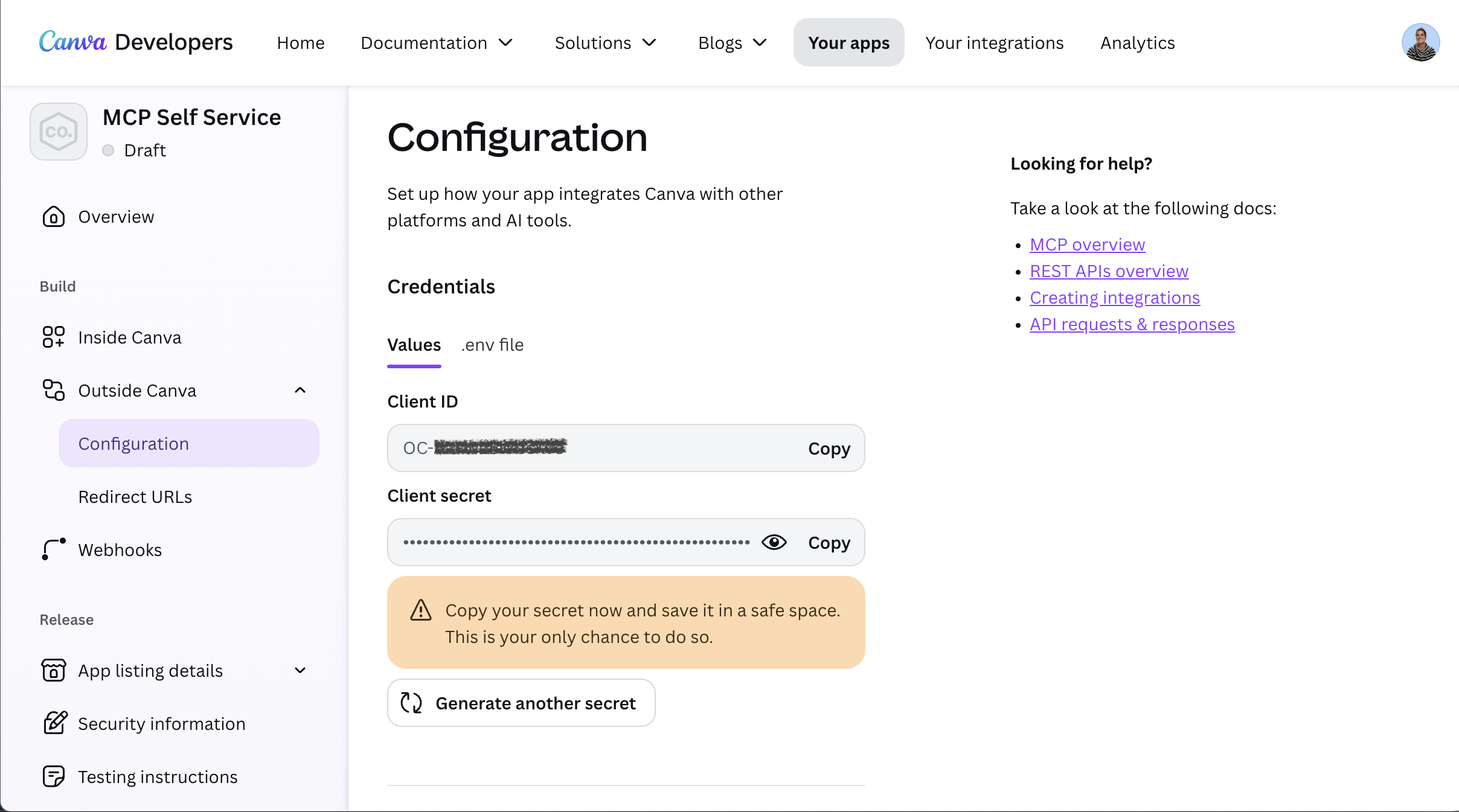
Under Credentials, copy the client ID. Click Generate secret, then store the client secret somewhere secure. It isn't shown again.
-
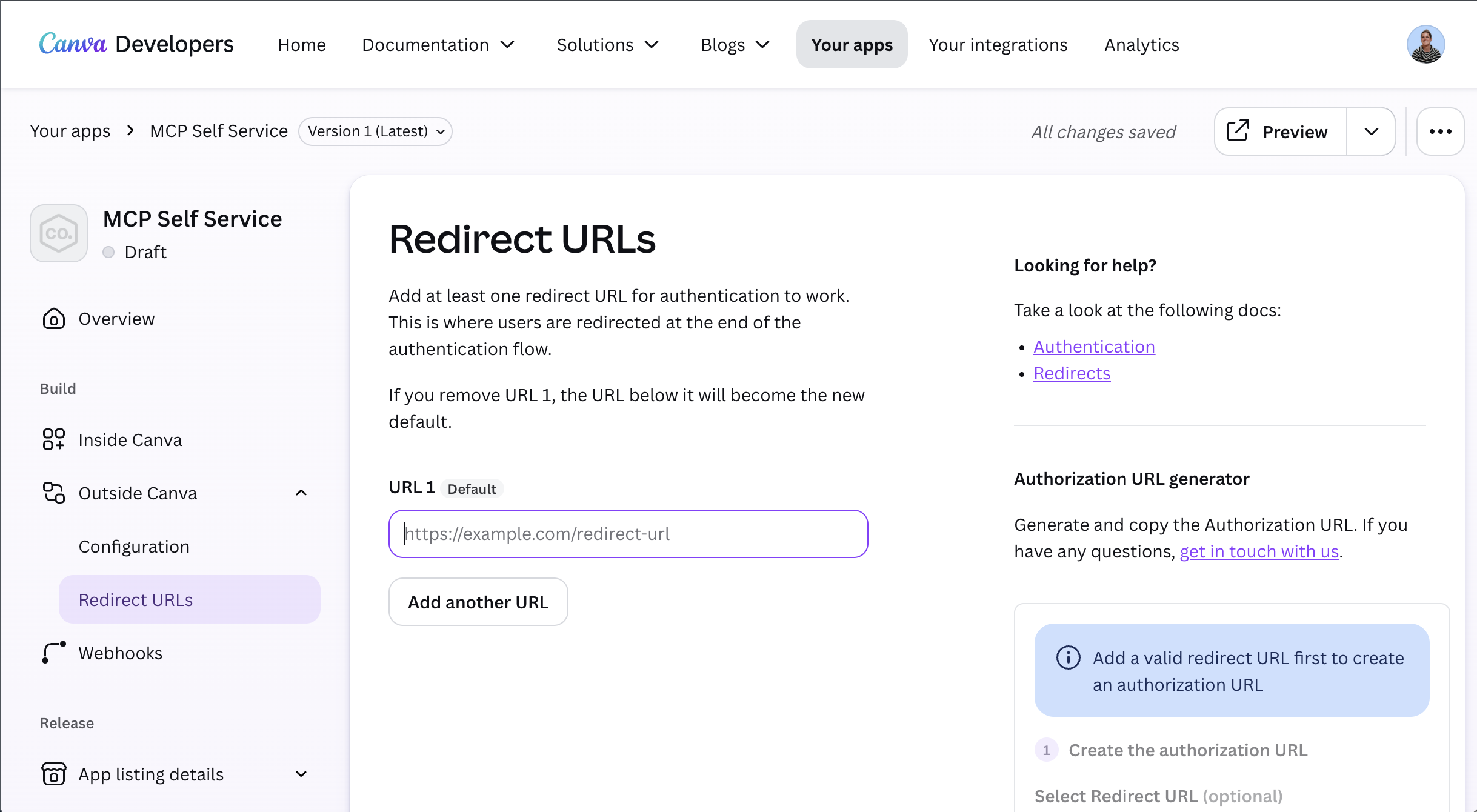
Add the redirect URL your OAuth client uses under Redirect URLs.
-
Configure your MCP client to connect to the Canva MCP server at
https://api.canva.com/connect/v1/mcpusing Streamable HTTP.
Each user must authenticate with their own Canva account. The tools respect that user's Canva permissions; Canva MCP doesn't support organization-level or service-account authentication.
If your client uses a Client ID Metadata Document (CIMD) instead of a client secret, apply through the Canva MCP waitlist(opens in a new tab or window) to register its redirect URI.
Tips for a reliable experience
As you build, keep these details in mind:
- Discover tools when you connect. List tools from the server rather than assuming a fixed set, and check the tool documentation for request and response shapes.
- Handle long-running operations. Design generation can take time. Keep the job ID and poll according to the returned polling policy. Once the job is successful, provide the user the edit URL and show the design in the chat.
- Keep users informed. Show progress and report success only after the tool confirms the operation completed.
- Make it easy to continue in Canva. After a design workflow, surface the returned edit link so users can open their design in Canva.
- Respect user access and plan limits. Tools work with each user's permissions, and some features require a paid Canva plan.
For example requests and detailed implementation guidance, see Canva MCP best practices, the tool reference, and Verify your Canva MCP app.
Choose the right connection
This announcement is for developers adding Canva to their own AI experience. If you want to connect a popular AI assistant to Canva, most already have a Canva connection. Follow the Canva AI Connector setup guide(opens in a new tab or window).
To learn more about Canva for AI assistants, start with the Canva MCP overview and access and permissions guide.