Connect API
Using Canva with your coding agent
Guidance for using Canva with coding assistants, Dev MCP, remote MCP, and the Connect APIs.
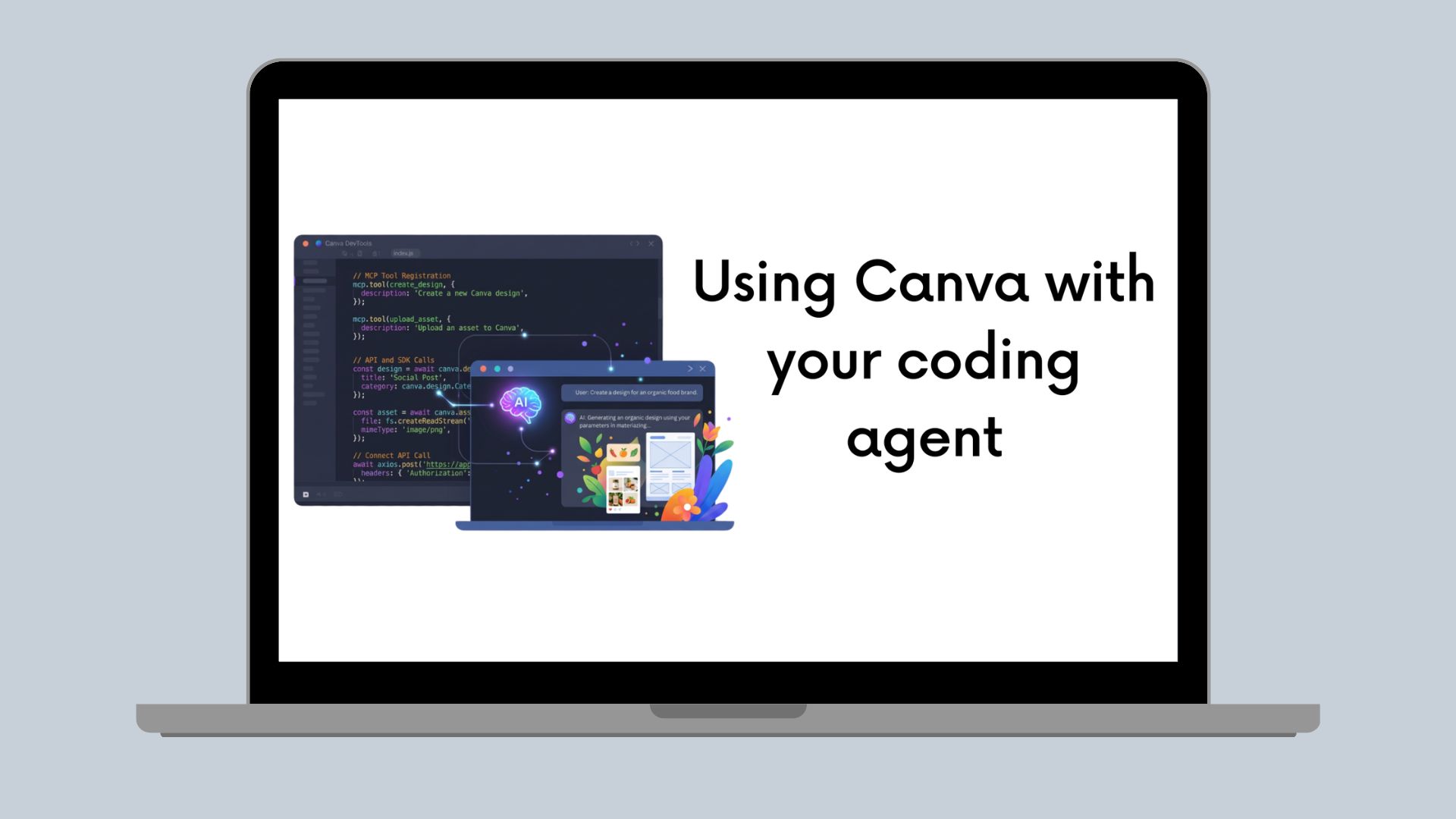
Coding assistants and workflow platforms are great for working with Canva. This guide explains the different ways you can connect Canva to your coding agent, whether you're using the Canva Dev MCP server, a remote Canva MCP connection, or the Connect APIs.
Dev MCP vs remote MCP vs Connect APIs
There are three common ways to use Canva with AI tools and automation:
- Canva Dev MCP server: This is a development tool for coding agents and AI assistants. It connects your coding environment to Canva-specific docs, examples, and tooling so your assistant can help you build Canva apps and integrations. You can connect it to any platform that supports local MCP servers immediately, without signing up, registering, or applying. Access and maintenance remain under your control.
- Canva remote MCP server: This is a hosted MCP service that exposes Canva's design capabilities directly for end-user AI assistants. Use it when you want an assistant to create, edit, search, or export designs as part of a non-deterministic, natural-language workflow. Any developer can set up access in the Developer Portal. To get started, see the Canva MCP documentation. Pre-configured access is available in many commonly used tools like ChatGPT, Codex, Claude, Grok, Perplexity, Superhuman, and more.
- Canva Connect APIs: These are REST APIs for building integrations from your backend or workflow platform. Use them when you want programmatic and deterministic access to designs, assets, templates, exports, and other Canva resources. All integrations need to register for a Client ID and Secret in our developer portal. Private integrations are for enterprise teams, while public integrations can be used in draft state for testing. Unless your integration will be accessed in a marketplace, you don't need to submit it for verification and approval.
The key difference is this:
- Use Dev MCP for development help, code generation, and faster onboarding when you're building Canva solutions.
- Use remote MCP for user-facing AI experiences that act on Canva designs directly through an assistant.
- Use Connect APIs when you need a backend integration, automation workflow, or API-driven integration with Canva.
Connect APIs
About reviews and submissions
If you're only building a private integration for yourself, you usually don't need to submit anything for Canva review.
-
Register your integration on the Developer Portal(opens in a new tab or window) to get your credentials and start testing.
-
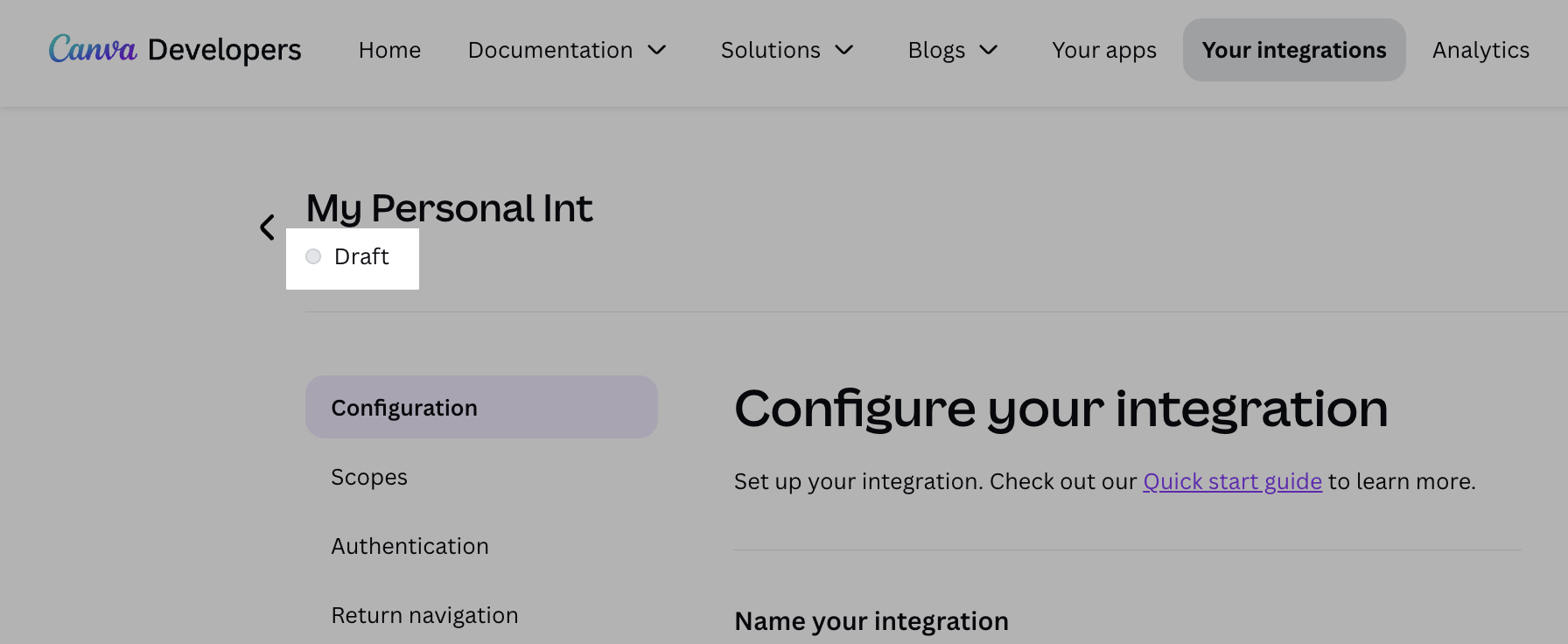
Use draft mode while you build and validate your integration.
-
Submit for review when you want to make a public integration available to all Canva users.
For Canva Connect integrations, public review is required only for public integrations that will be surfaced in a marketplace for all platform users. Private integrations don't need public review.
Use a secure backend
The Connect APIs are built for integrations that run from a server or web application. For coding agents and automation platforms, the safest architecture is:
- Keep your Connect API client credentials and access tokens on a backend service.
- Let the agent or workflow platform call your backend, not Canva directly.
- Use your backend to make the actual Connect API requests.
This keeps secrets out of prompts, chat histories, and automation nodes. It also makes it easier to manage OAuth, refresh tokens, and rate limits.
Treat coding agents as implementation helpers, not runtime clients
Coding agents such as Codex and Claude are valuable for generating request code, building HTTP integrations, and helping you understand API patterns. However, they shouldn't be the place where you store or manage credentials.
- Use the agent to generate backend code that follows the Connect API contract.
- Validate the agent-generated request against the Connect API spec before you deploy it.
- Keep OAuth flows and token storage in a server you control.
For example, you can ask an agent to generate a Node.js or Python function that:
- Exchanges an authorization code for Canva access tokens.
- Refreshes access tokens when they expire.
- Sends
GET,POST, orPATCHrequests to/designs,/assets,/exports, or other Connect API endpoints.
Then run that code in a secure environment rather than using the agent as a runtime execution engine.
Workflows for automation platforms
Platforms such as n8n, Zapier, and Make let you build automations that call external services. Many automation tools can call the Connect APIs directly.
Canva provides preconfigured Connect API nodes/templates for Zapier, Make, and n8n to make this easier and faster to prototype.
Canva Dev MCP server
The Dev MCP server is a local developer tool that connects coding agents to Canva's developer docs, examples, and helper tooling.
- Who should use this: Engineers, integrators, and developer advocates building or testing Canva integrations and agent workflows. It is ideal for iterative development and debugging.
- Where it runs: Locally on your machine or in a private development environment. See the Dev MCP server setup guide for installation and configuration: /docs/connect/mcp-server/.
- Common use cases: Rapid prototyping, generating and validating API requests, end-to-end testing with sandbox credentials, and teaching agents about your integration contract.
- Don't place production secrets or tokens in prompts or in agent conversation logs.
- Validate agent-generated requests against the Connect API OpenAPI spec before running them in production.
Canva remote MCP server
The remote MCP server is a hosted service that exposes Canva capabilities to user-facing assistants and hosted AI tools.
- Who should use this: Product teams building interactive, natural-language experiences that let users create, edit, or export designs through an assistant.
- What agents already have it: Remote MCP access is preconfigured in many popular assistants and platforms (for example, ChatGPT, Codex, Claude, Grok, Perplexity, and several productivity tools). Availability varies and may require onboarding or partnership.
- Common use cases: Interactive design generation, conversational editing sessions, assistive design workflows, and user-facing automation where low-friction natural-language interaction is the priority.
- Remote MCP is hosted, so don't send client secrets or production tokens to hosted instances.
- Consider privacy, data residency, and audit requirements before enabling remote MCP for production users.