Canva REST APIs
Canva service accounts, bring Canva APIs into your product
Build Canva capabilities into your software with service accounts—secure backend access to Canva APIs for automation, assets, and AI-powered workflows.
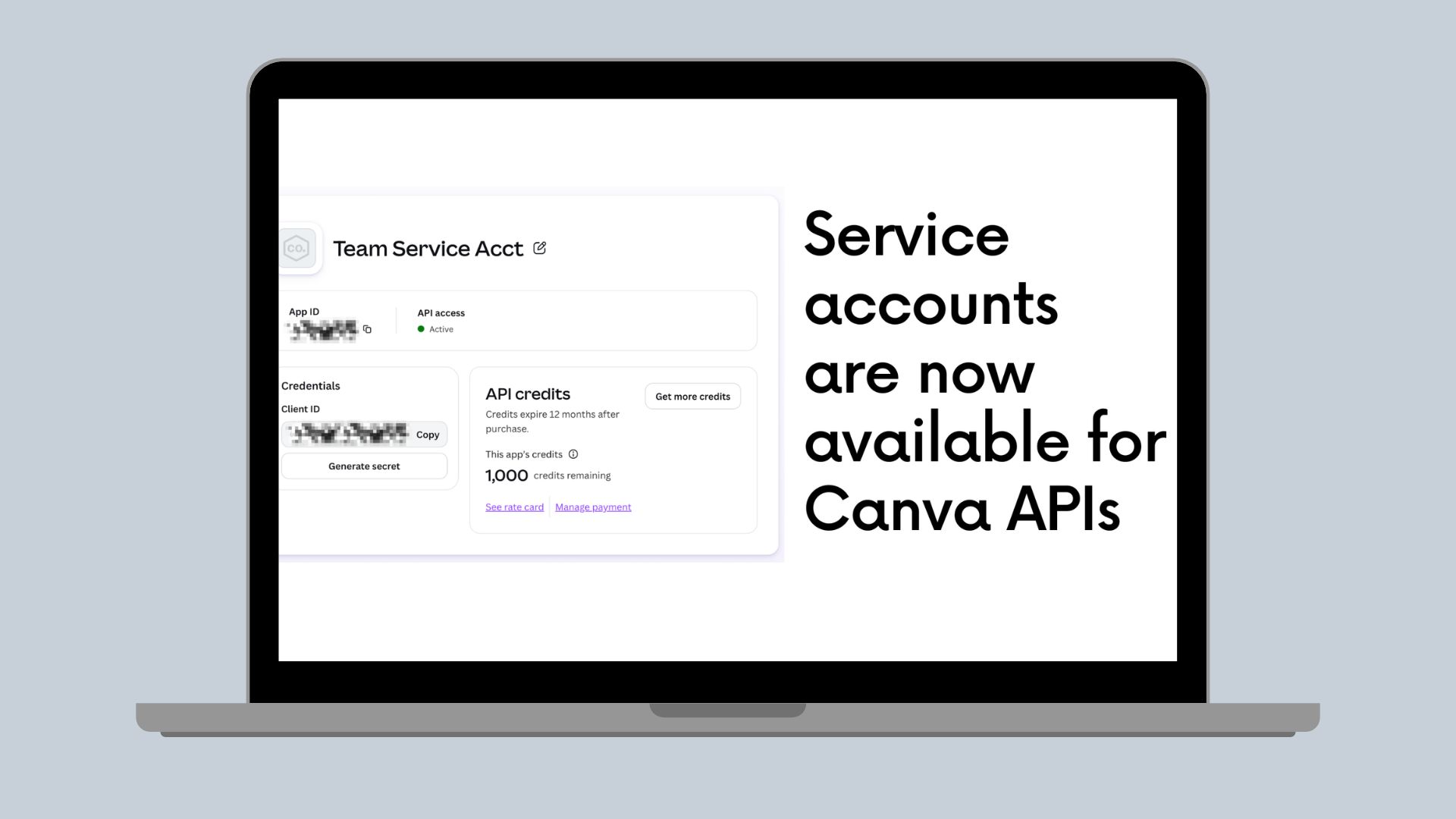
Your product already has a home for creative work: it might be a digital asset manager, a marketing platform, an e-commerce tool, or an AI-powered workflow. Now, it can use Canva technology behind the scenes.
With Canva service accounts, your software can securely call Canva APIs from its backend—without asking every person who uses your product to sign in to Canva.
That means you can build Canva capabilities directly into the experiences your customers already use. For example, you might use Canva CRAFT image generation to turn a prompt into a visual asset in your product, or use Canva APIs to manage the assets that move through your workflow.
What's a service account?
A Canva service account gives your application an identity of its own.
Instead of making API requests on behalf of an individual Canva user, your backend makes requests on behalf of your software. In the Canva Developer Portal, this is created as a service app.
Service accounts are designed for secure, server-to-server use. Your application holds the credentials, receives the permissions it needs, and uses Canva APIs as part of a controlled product workflow.
Your end users don’t need to sign in to Canva, so you can bring Canva capabilities, such as image generation with Craft, and design autofill, directly into your product, whether or not someone has a Canva account.
When should you use a service account?
Use a service account when Canva is a capability inside your product, rather than a destination your users need to visit.
Service accounts are a good fit when you're:
- Adding Canva-powered image generation, asset management, or creative automation to your software
- Building a workflow that runs in your backend, on a schedule, or in response to an event
- Creating a product experience where users shouldn't need to connect a Canva account
- Building an AI agent that can carry out approved creative tasks through a secure, backend-controlled integration
- Managing assets and designs that belong to your application or team
For example, a platform could use a service account to retrieve its team’s brand templates, generate Canva-powered content as part of an internal workflow, or use Canva Craft image generation to create campaign imagery from product context.
Service accounts versus user authentication
Canva supports different ways to authenticate an app. Choose the model that matches whose behalf the request is made.
If your REST API app needs to… | Use |
|---|---|
Access Canva on behalf of a person who signs in and authorizes your app | User authorization |
Call supported Canva APIs from your backend, on behalf of your platform | A service account / client credentials |
Access a user’s Canva resources or require their consent | User authorization |
Run automated, application- or team-owned workflows without end-user sign-in | A service account / client credentials |
Service accounts give platforms a way to build with Canva technology at the infrastructure layer. User authentication remains the right approach when a person’s Canva identity, content, or consent should be part of the request.
How service-account authentication works
-
Create a service app in the Canva Developer Portal.
-
Ensure your team account has MFA or SSO enabled.
-
Select the API scopes your app needs.
-
Generate a client secret and store it securely in your backend’s secret manager.
-
Exchange your client ID and client secret for a short-lived access token.
-
Use the access token to call supported Canva REST API endpoints.
Here’s a token request using the client credentials flow:
curl --request POST 'https://api.canva.com/rest/v1/oauth/token' \--user '{client id}:{client secret}' \--data-urlencode 'grant_type=client_credentials' \--data-urlencode 'scope=service:brandtemplate:meta:read'
The response contains an access_token and an expires_in value. Service-account tokens don't include refresh tokens, so your backend should request a new token after the current one expires.
What to know before you create a service account
- Your team must be on a Canva Business, Teams, or Nonprofit plan.
- Your Canva account must use MFA or be managed through SSO.
- Each Canva team can have one service app.
- Service-account API usage draws from your team’s API credit pool.
- Team owners and admins can purchase API credit packs.
- Only the app owner can generate a client secret.
- Choose No Canva sign-in required carefully; you can't change the app type later.
API credits for service apps
Service apps use your team’s API credit pool. Before making requests, your team needs to purchase an API credit pack in the Developer Portal. Each request consumes credits according to the endpoint’s documented rate.
This makes service accounts a good fit for predictable, production workflows: your platform can track API usage alongside the automation it provides.
Scopes
Service-app scopes begin with service:. Choose the narrowest set of permissions needed for your workflow.
For example, an app that lists a team’s brand templates needs the service:brandtemplate:meta:read scope. Endpoint documentation identifies whether a service app can use an endpoint and which scope is required.
Keeping scopes narrow improves security, makes reviews easier, and helps teams understand exactly what an automated workflow can do.
Secure your credentials
A service account’s client secret is sensitive. Treat it like a password.
- Keep credentials in a secure backend secret store.
- Never expose them in browser code, mobile apps, logs, or source control.
- Give an agent or automation only the scopes it truly needs.
- Treat a service account as a production identity for your software, not as a shared end-user credential.
- Build clear controls around actions that create, update, or delete assets.
The credential exchange can't be performed from a browser-based client. It must come from your server.
Get started with Canva service accounts
To create a service app:
-
Open Your apps in the Canva Developer Portal(opens in a new tab or window).
-
Select Create an app.
-
Under “Who can use your app?”, choose No Canva sign-in required.
-
Configure the required
service:scopes. -
Generate a client secret. Make sure to store this securely. It will only be shown one time.
-
Purchase API credits and begin making supported REST API calls from your backend.
See the fullQuickstart and start building your new service app!